1.Getting started
Thank you for choosing Jizan. This guide walks you from an empty WordPress site to a finished news magazine. Read sections 1 and 2 first; everything after that can be read in any order. Use the search box on the left to jump to any setting.
What is in the download
| File | What it is |
|---|---|
jizan.zip | The installable WordPress theme. This is the file you upload in WordPress. It also contains a copy of Jizan Core for automatic installation. |
jizan-core.zip | The Jizan Core companion plugin (the same version as the bundled copy). Use it for manual installation or updates. |
documentation/ | This documentation (open index.html in any browser, works offline). |
jizanmain.zip / the folder you downloaded). WordPress only accepts jizan.zip as a theme. Uploading the main package gives the error "The package could not be installed. The theme is missing the style.css stylesheet."Requirements
| Item | Minimum | Recommended |
|---|---|---|
| WordPress | 6.0 | Latest version (Jizan is tested up to 7.1) |
| PHP | 7.4 | 8.2 or newer (tested up to 8.5) |
| PHP memory limit | 128M | 256M (the demo import and Elementor like more memory) |
| max_execution_time | 60 | 300 |
| upload_max_filesize | 16M | 32M or more |
| Elementor | Free version | Latest version. Elementor Pro is not needed. |
| Permalinks | Any setting except "Plain" is recommended (Settings → Permalinks → "Post name"). | |
You can check your server values on Jizan → Welcome (box "System status") after installation. If a value is too low, ask your host to raise it, or add define( 'WP_MEMORY_LIMIT', '256M' ); to wp-config.php above the line "That's all, stop editing!".
Install the theme
- Log in to your WordPress admin and go to Appearance → Themes.
- Click Add New Theme at the top, then Upload Theme.
- Click Choose File, select
jizan.zipand click Install Now. - When the upload finishes, click Activate.
- WordPress opens Jizan → Welcome once Jizan Core is active. Until then a notice at the top asks you to install the required plugins (next step).
jizan.zip on your computer and upload the jizan folder to wp-content/themes/ with FTP / your host's file manager, then activate it in Appearance → Themes.Install the required plugins (TGMPA)
Jizan uses a plugin installer (TGM Plugin Activation). After activating the theme you see a notice "This theme requires the following plugins: Elementor and Jizan Core".
- Click Begin installing plugins in the notice, or go to Appearance → Install Plugins.
- Tick Elementor, Jizan Core and (recommended) Contact Form 7.
- Choose Install in the "Bulk actions" menu and click Apply. Wait until all three are installed.
- Go back to Appearance → Install Plugins, tick the installed plugins again, choose Activate and click Apply.
| Plugin | Type | What it adds |
|---|---|---|
| Elementor | Required (free) | The page builder used for every homepage and for the About / Advertise pages. |
| Jizan Core | Required (bundled) | 21 Elementor widgets, 12 sidebar widgets, the Jizan admin menu (Welcome, Theme Options, Demo Import, Ads, Subscribers), AJAX blocks / mega menu / live search, review system, ads manager, demo import, AJAX login, profile photos, share bar, story highlights, schema and the post format media box. |
| Contact Form 7 | Recommended (free) | The forms on the Contact and Advertise With Us demo pages. |
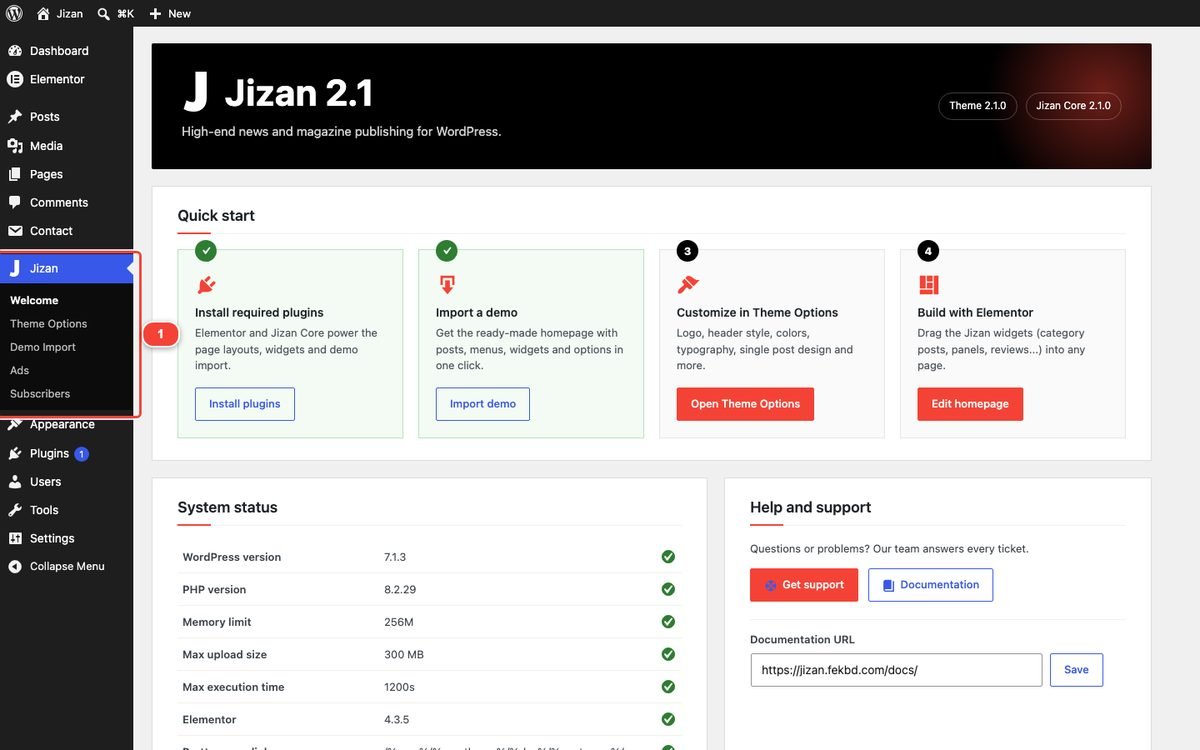
Without Jizan Core the theme still works (Theme Options move to Appearance → Jizan Options), but widgets, ads, reviews and AJAX features are missing, so always keep it active.
Child theme
Use a child theme if you plan to edit theme files (PHP templates or CSS). Your Theme Options, menus and widgets are stored in the database, so they stay when you switch to a child theme (re-assign menu locations and widgets once if WordPress asks).
- On your computer create a folder named
jizan-child. - Inside it create
style.csswith this content:/* Theme Name: Jizan Child Template: jizan Version: 1.0.0 Text Domain: jizan-child */ - Create
functions.phpnext to it:<?php add_action( 'wp_enqueue_scripts', function () { wp_enqueue_style( 'jizan-child', get_stylesheet_uri(), array(), '1.0.0' ); }, 200 ); - Zip the folder (
jizan-child.zip), upload it in Appearance → Themes → Add New Theme → Upload Theme and activate it. Jizan (the parent) must stay installed. - To change a template, copy the file from
jizan/to the same path injizan-child/and edit the copy.
License and updates
- Your ThemeForest purchase includes future updates. Download new versions from your ThemeForest account (Downloads → Jizan → Download → Installable WordPress file only).
- For automatic update notices inside WordPress, install the free Envato Market plugin and connect it with a personal token from your Envato account.
- Jizan Core is updated together with the theme: after a theme update a notice says "The following plugin needs to be updated: Jizan Core". Click Begin updating plugin.
- Support is included for the support period of your purchase (see Support).
Updating from 2.0 to 2.1
- Back up your site (files and database) with your host's backup tool or a backup plugin.
- Download the 2.1
jizan.zip. Go to Appearance → Themes → Add New Theme → Upload Theme, upload it and click Replace current with uploaded. - Update Jizan Core: click Begin updating plugin in the notice (or Appearance → Install Plugins → tick Jizan Core → Update). You can also upload
jizan-core.zipin Plugins → Add New Plugin → Upload Plugin and choose Replace current with uploaded. - Clear every cache: your cache plugin, your host/CDN cache, and Elementor → Tools → Regenerate CSS & Data.
- Open your site. Your content, menus, widgets and Theme Options are kept. Some 2.1 features change the default look; switch them back if you prefer the 2.0 design:
2.1 default How to get the 2.0 look New navigation bar ("Solid") Jizan → Theme Options → Header → Navigation Bar Style = Borders (classic 2.0) Premium footer Theme Options → Footer → Footer Design = Classic (2.0) Premium off-canvas panel Theme Options → Header → Premium Off-canvas Panel = Off Archives use "Load more" Theme Options → AJAX & Loading → Archive Pagination = Page links - Older / Newer (1.x/2.0) Category colours on labels Theme Options → Layout & Breadcrumbs → Category Colours = Off Dark mode switch in the header Theme Options → Reading → Dark Mode = Off - Optional: to get the 23 new homepages, run Jizan → Demo Import with "Items that already exist" = Keep my version, only add what is missing (see Demo import).
2.One-click demo import
Jizan ships 23 ready-made homepages. Every demo imports the same shared Jizan content (posts, pages, categories, menus, widgets, authors, forms, ads) and then sets its homepage as the front page together with its colour skin and header style. Switching to another demo later re-uses the same content and only changes the front page, skin and header.
The 23 demos
| Demo | Group | Skin | Header |
|---|---|---|---|
| Main | News & Magazine | Jizan Red | Header 1 |
| Magazine | News & Magazine | Jizan Red | Header 1 |
| Classic Newspaper NEW | News & Magazine | Newspaper Ink | Header 7 |
| Politics | News & Magazine | Newsroom Blue | Header 1 |
| World News | News & Magazine | Travel Teal | Header 1 |
| Trending | News & Magazine | Jizan Red | Header 1 |
| Business NEW | News & Magazine | Business Blue | Header 3 |
| Crypto NEW | News & Magazine | Crypto Orange | Header 4 |
| Fashion | Lifestyle & Culture | Classic Black / Gold | Header 1 |
| Beauty | Lifestyle & Culture | Lifestyle Rose | Header 1 |
| Celebrity | Lifestyle & Culture | Jizan Red | Header 1 |
| Lifestyle | Lifestyle & Culture | Lifestyle Rose | Header 1 |
| Entertainment | Lifestyle & Culture | Sunset Orange | Header 1 |
| Photo Editorial | Lifestyle & Culture | Minimal Mono | Header 1 |
| City Magazine NEW | Lifestyle & Culture | City Raspberry | Header 8 |
| Minimal Blog NEW | Lifestyle & Culture | Minimal Mono | Header 6 |
| Tech NEW | Tech, Sport & Living | Tech Purple | Header 5 |
| Gaming NEW | Tech, Sport & Living | Gaming Neon | Header 5 |
| Sports NEW | Tech, Sport & Living | Sports Green | Header 1 |
| Travel NEW | Tech, Sport & Living | Travel Teal | Header 2 |
| Health NEW | Tech, Sport & Living | Health Mint | Header 6 |
| Food NEW | Tech, Sport & Living | Food Coral | Header 7 |
| Video NEW | Tech, Sport & Living | Cinema Red | Header 4 |
Preview any demo at jizan.fekbd.com or with the Live preview button on its card.
Import a demo step by step
- Make sure Elementor and Jizan Core are active (and Contact Form 7 if you want the contact forms).
- Go to Jizan → Demo Import. Each homepage has a card with a screenshot.
- Click Live preview to open the demo in a new tab, or Import to open the import options of that card.
- Under What to import keep the boxes you need (all are ticked by default): Content (posts, pages, categories, images, menus), Widgets, Theme options, Front page and posts page, and Download the demo photos from jizan.fekbd.com (otherwise placeholder images are used).
- Under Items that already exist choose Update them with the demo version (default, fresh sites) or Keep my version, only add what is missing (sites with your own changes).
- Click Start import and confirm. A progress list shows each step: Categories and tags, Images, Demo authors, Contact forms, Posts and pages, Page parents / Elementor data, Menus and menu locations, Widgets, Theme options, Front page and settings, Finishing. Keep the tab open until you see Import complete.
- Click View site. Done.


What gets imported
- Content: about 240 posts and pages (all 23 homepages, About Us, Advertise With Us, Contact, Authors, Blog Style 1-7), categories with colours and sub-categories, tags, images, demo authors (Author role, random passwords), Contact Form 7 forms, review data, story highlights.
- Menus: Main Menu (with the Homepage and Features mega menus), Top Menu, Footer Menu and Off Canvas Menu, assigned to their locations.
- Widgets: Blog Sidebar, Footer A-D and the header banner. Your old widgets are moved to Inactive widgets, never deleted.
- Theme options: all Jizan options, including the demo's skin and header, plus the ads manager house ads.
- Settings: the front page (Settings → Reading).
- Photos: the package contains placeholder images. With the photo option ticked, the real demo photos are downloaded from jizan.fekbd.com. They are free Unsplash photos for preview purposes; replace them with your own images on a live site.
Re-import, switch demo, reset
- Re-import / switch: running an import again never creates duplicates. Import another demo at any time to switch the front page, skin and header.
- Backup: before each run, your previous theme options, widget areas, menu locations and front page are saved as a backup in the database (option
jizan_core_import_backup). - Reset the options only: Jizan → Theme Options → Import / Export → Reset all options.
- Start from zero: the importer never deletes anything. To remove demo content, delete posts/pages/media in bulk from their lists, or, on a site without real content, use a reset plugin such as WP Reset and import again.
- Developers: WP-CLI is supported:
wp jizan-core demo list,wp jizan-core demo import fashion --mode=keep.
Common problems
| Problem | Solution |
|---|---|
| "Import stopped:" or the progress stops | Usually a server timeout or low memory. Raise memory_limit to 256M and max_execution_time to 300, then click Import again with the same settings. The import continues safely without duplicates. |
| "Session expired, please reload the page." | Reload Jizan → Demo Import and start again. |
| Grey placeholder images | Your server could not download from jizan.fekbd.com (firewall). Run the import again later with the photo option ticked, or simply add your own images. |
| Homepage looks empty or unstyled | Check Settings → Reading (a static page is selected), that Elementor and Jizan Core are active, then Elementor → Tools → Regenerate CSS & Data and clear your cache. |
| Pages show "404 Not Found" | Go to Settings → Permalinks and click Save Changes once. |
| Contact forms missing | Install and activate Contact Form 7, then import again in "Keep my version" mode. |
3.Theme Options
All global settings live in Jizan → Theme Options. The tabs are on the left; all tabs are saved together with Save Changes (top right and bottom). Fields that depend on another setting only appear when they apply (for example the gradient colours appear only for the "Gradient" nav bar style). Empty colour fields mean "automatic" (taken from the Style Kit skin).
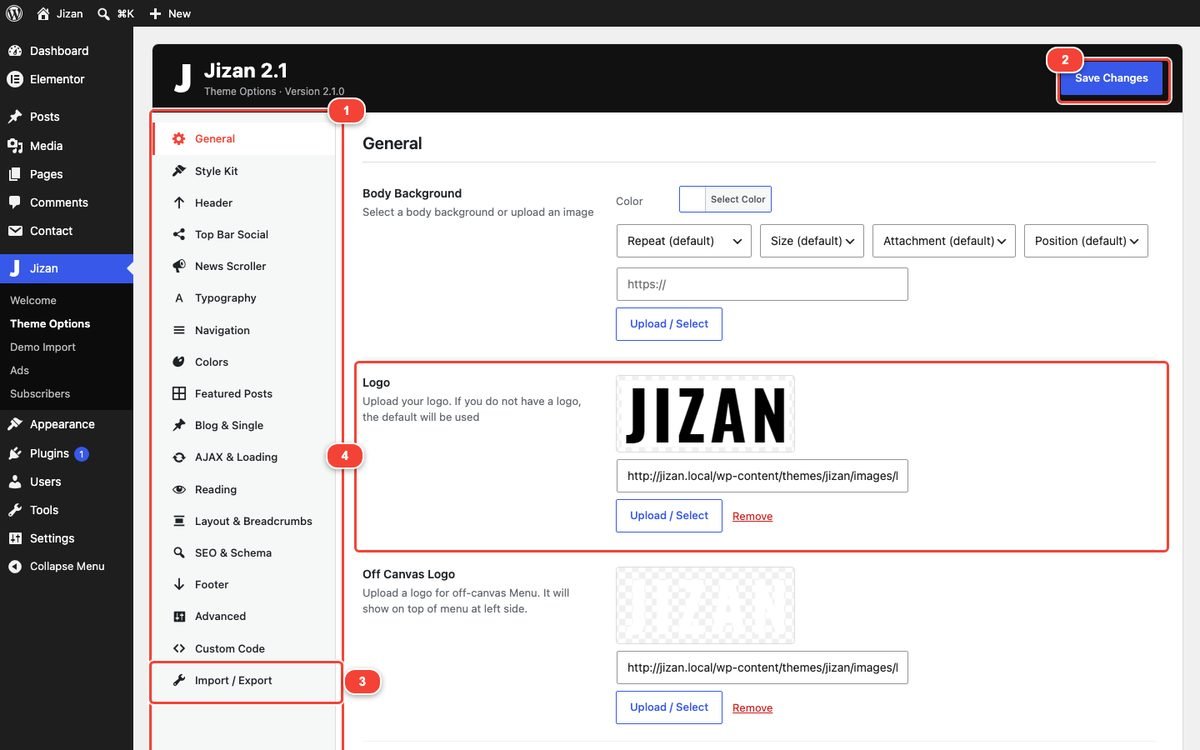
General
| Option | What it does |
|---|---|
| Body Background | Background colour or image of the page body (with repeat, size, attachment and position). |
| Logo | Your header logo. Upload it at twice the display size for sharp retina screens (for example 540 × 180 px for the 270 × 90 px logo area of Header 1). |
| Off Canvas Logo | Logo at the top of the off-canvas menu panel. Use a light (white) logo because the panel is dark. |
| Favicon | Small browser-tab icon (ICO or PNG). You can also use WordPress's Site Icon in Appearance → Customize → Site Identity. |
| Section Heading Style | Style 1-7 for every block title and sidebar widget title. |
Style Kit
Colour Skin (17 skins + Custom with Custom Skin - Primary / Custom Skin - Secondary) and the global Header Style (8 headers). Full details in Style Kit, colors & typography and Header.
Header

| Option | What it does |
|---|---|
| Site Loader | Thin progress bar at the top while a page loads (off by default for speed). |
| Top Header | Shows or hides the black top bar (date, top menu, social icons, dark switch, login). |
| Header Background Color / Header Links Color | Colours of the top bar and its links (regular / hover). |
| Navigation Bar Style … Navigation Bar - Sticky | The premium navigation bar (23 fields). See Navigation bar. |
| Date on Top Header / Header Date Color | Today's date in the top bar and its colour. |
| Header Login / Modal Login Background | The user icon that opens the AJAX login / register / lost password window, and an optional background image for that window. |
| Offcanvas background Color / Offcanvas Menu Color | Colours of the classic (1.x) off-canvas menu. |
| Premium Off-canvas Panel … Off-canvas: Copyright Line | The 2.1 off-canvas panel (13 fields). See Off-canvas menu. |
Top Bar Social
Header Social Icons turns the icons on in the top bar; Header Social Icons Color sets their colour. Then fill the profile URLs: Facebook, Twitter, LinkedIn, Instagram, Google Plus, Pinterest, Behance, Windows, Android, Apple. Empty fields are not shown. The same URLs feed the social icons of the off-canvas panel and the premium footer.
News Scroller
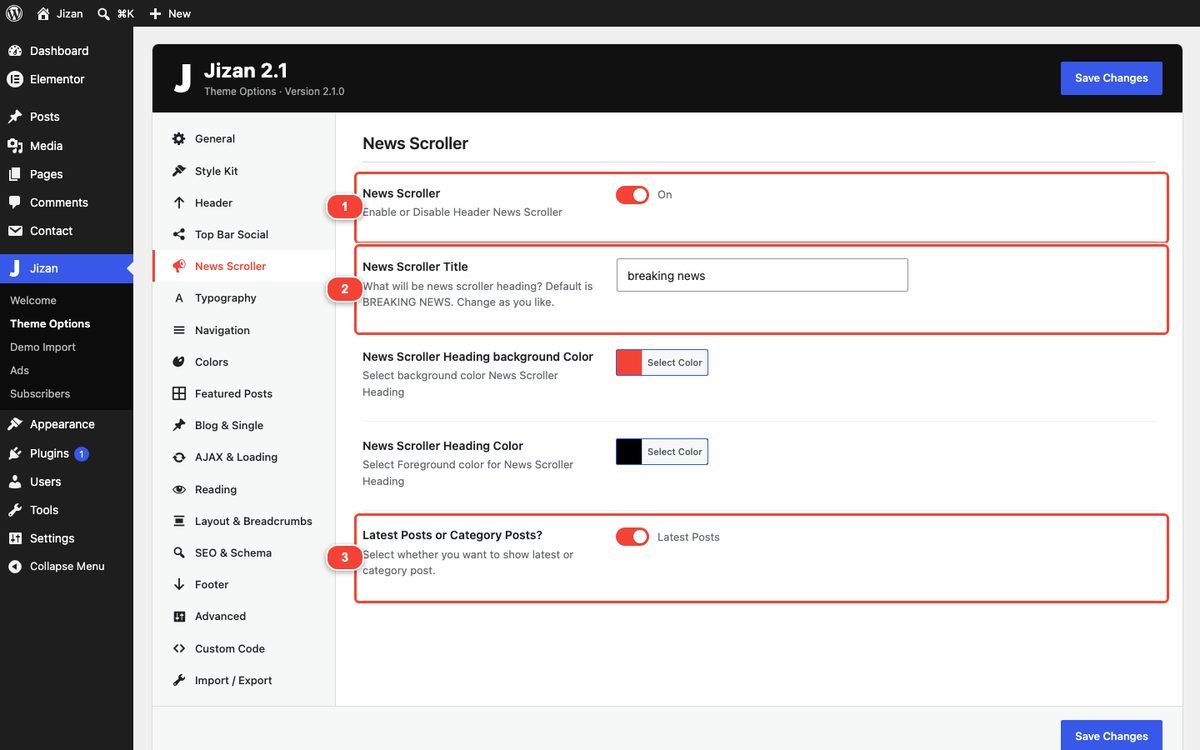
| Option | What it does |
|---|---|
| News Scroller | Shows the breaking news ticker under the logo. |
| News Scroller Title | Label text (default "breaking news", shown in capitals). |
| News Scroller Heading background Color / Heading Color | Label colours. |
| Latest Posts or Category Posts? | On = latest posts. Off = posts of one category; then Insert Category ID appears. Find the ID in Posts → Categories: hover the category name, the link shows tag_ID=13 (13 is the ID). |
Typography
Each field has font family, weight and size: Body Text Font, Header Navigation, Off-Canvas Navigation, Mega Menu (also the font family of the premium navigation bar), Site Titles (headings, titles, metas) and Miscellaneous Fonts (sidebars, categories, buttons). The default Oswald and Roboto Condensed fonts are served from the theme folder (no request to Google).
Navigation

| Option | What it does |
|---|---|
| Mega Menu | Enables mega panels (category posts, mega columns, picked posts). Off = simple drop-downs. |
| Background / Menu Links | Main menu colours (used by the "Borders (classic 2.0)" bar; other presets use the Navigation Bar colours). |
| Mainmenu Submenu / Mega dropdown Links Color | Background and link colours of drop-downs and mega panels. |
| Header Social Icons | Social icons inside the main menu bar (headers that support it). |
| Modal Search | The search button in the menu bar that opens the full-screen search. |
| HOT News | The red "Trending" button; it opens a strip with the 3 most-read posts. |
Colors
Site Loader Color, Site Links Color, Brand Color Background and Brand Color Foreground. When these still hold the default red, the Style Kit skin replaces them automatically; a colour you change yourself is kept.
Featured Posts
Title colours (regular / hover) and image overlay colours (with opacity) for each post layout: Featured Posts 1-3, Grid Style 1 and 2 (100% and 66%), Grid Overlay, Grid Overlay Small, List Style and Card Grid Style 1 and 2. "100%" is the full-width version of a layout, "66%" the version for a two-thirds column.
Blog & Single
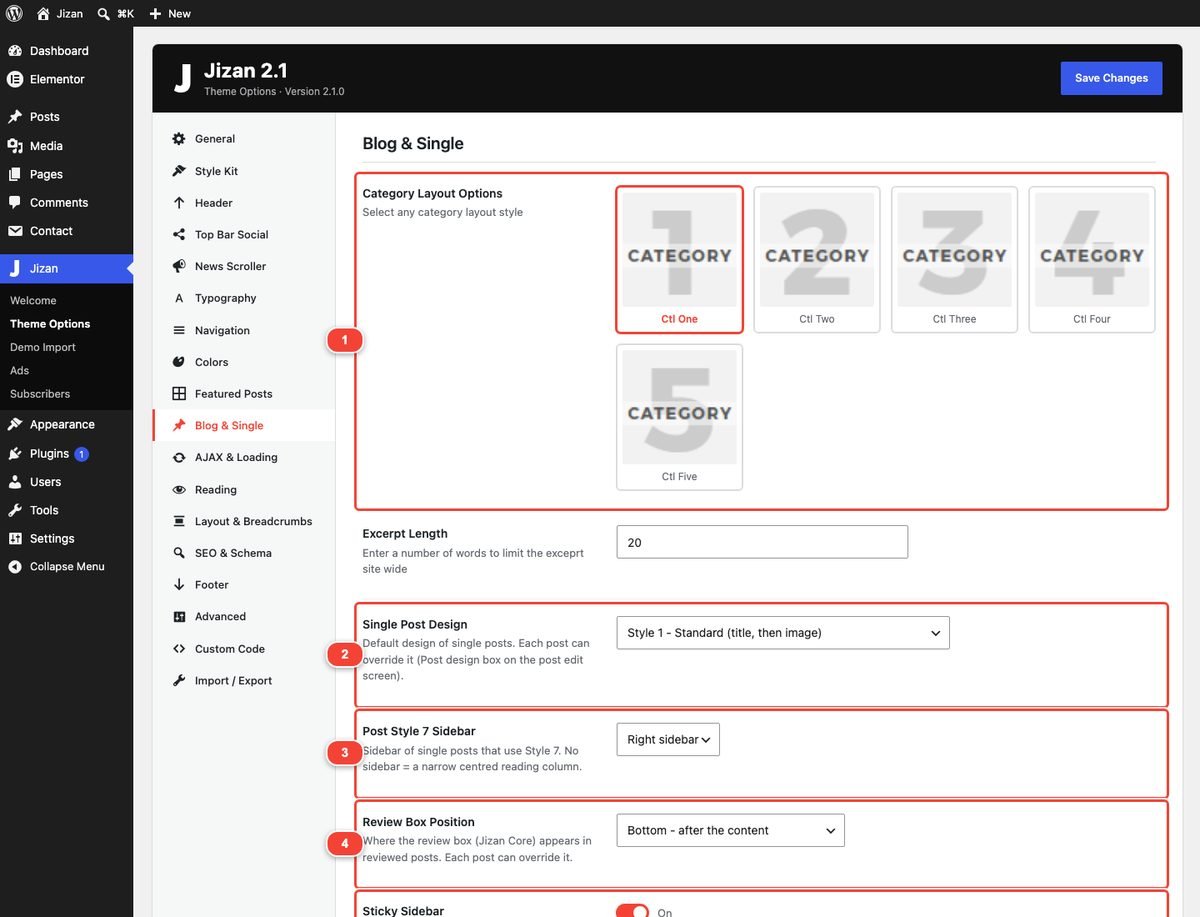
| Option | What it does |
|---|---|
| Category Layout Options | One of 5 layouts for category, tag and other archives. |
| Excerpt Length | Number of words in excerpts site wide (default 20). |
| Single Post Design | Default design of single posts (Style 1-7). See Posts. |
| Post Style 7 Sidebar | Right sidebar or No sidebar (narrow centred column) for posts using Style 7. |
| Review Box Position | Top / Center / Bottom default position of the review box. |
| Sticky Sidebar | Keeps sidebars in view while scrolling (blog, single, archives, pages and the Elementor Jizan Sidebar widget). Off on phones. |
| Top Social Share / Bottom Social Share | The share button rows above and below the article. |
| Facebook / Twitter / Google+ / LinkedIn Share, Share by Email | Which buttons the share rows contain. |
| Show Tags | Tag list under the article. |
| Author Box | Author card (photo, bio, social links) under the article. |
| Related Posts / Number of Related Post (66%) | Related posts block and how many posts it shows (2, 4, 6, 8, 10 look best). |
| Floating Previous/Next Posts | Small previous/next post cards at the screen edges (shown on screens 1300 px and wider). |
AJAX & Loading

| Option | What it does |
|---|---|
| Archive Pagination | For category, tag, author, date, search pages and the blog page: Load more button (AJAX, default), Infinite scroll (AJAX), Numbered page links or Page links - Older / Newer (1.x/2.0). |
| Infinite Scroll Pages | Infinite scroll only: pages loaded automatically before a Load more button appears (so the footer stays reachable). 0 = no limit. |
| AJAX Mega Menu | Category mega panels load their latest posts when hovered or focused. Needs Mega Menu (Navigation tab). |
| Live Search | The header search shows posts, categories and authors while typing (from 2 characters). Needs Modal Search. |
| Search Overlay Tint | Glass behind the search: Auto (follows light/dark), Always dark, Always light. |
| Popular Searches | Chips in the empty search window, separated by commas. Empty = your most used tags. |
| Auto-load Next Article / Articles to Auto-load | At the end of a post the previous (older) article loads below; the address bar follows the article in view. 1-10 articles. Off by default. |
Reading
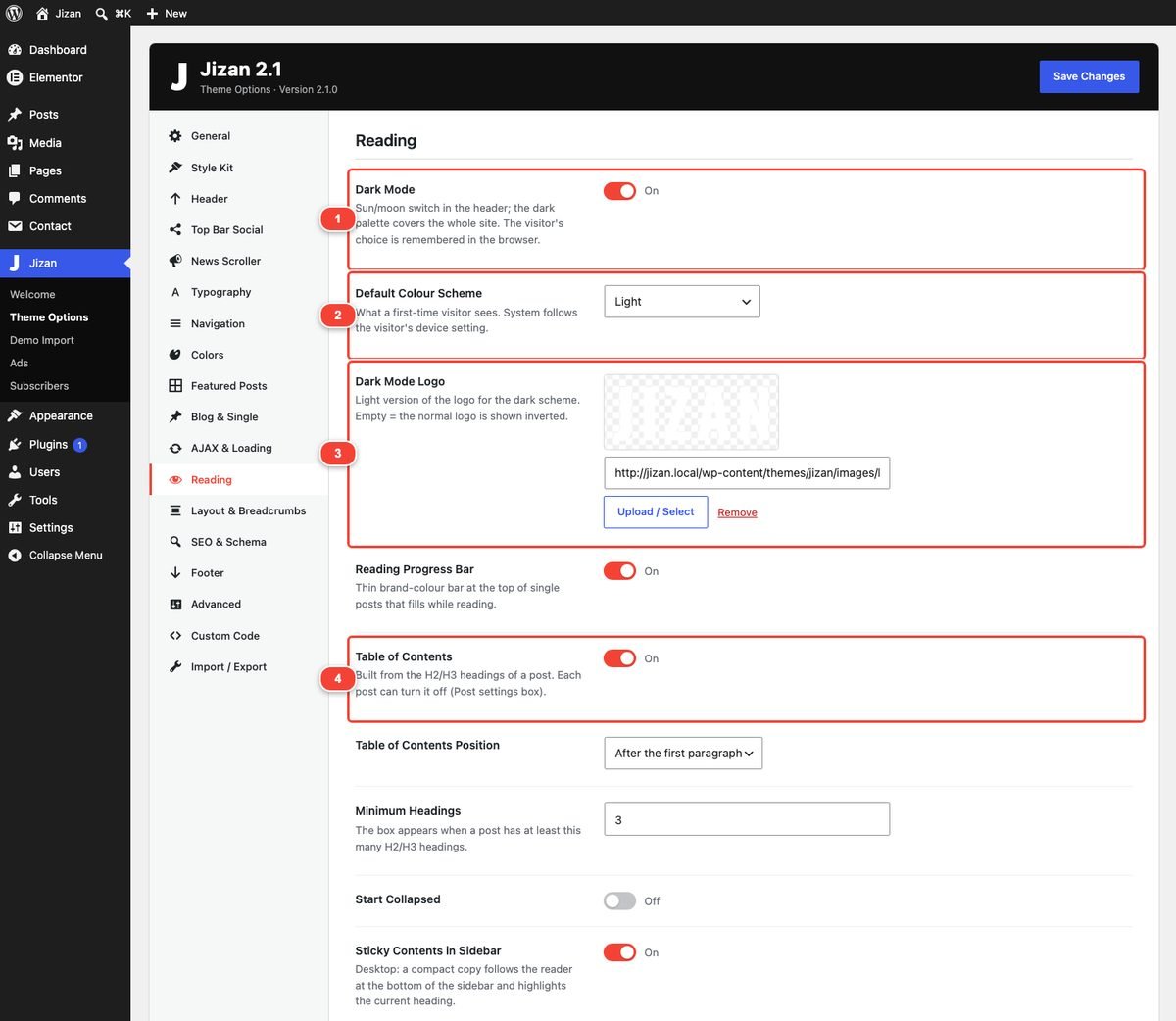
Dark Mode, Default Colour Scheme, Dark Mode Logo, Reading Progress Bar, Table of Contents (Position, Minimum Headings, Start Collapsed, Sticky Contents in Sidebar), Sticky Share Bar, Select & Share, Font Size Buttons and "Check Also" Box. Each is explained in Posts → Reading tools and Dark mode.
Layout & Breadcrumbs
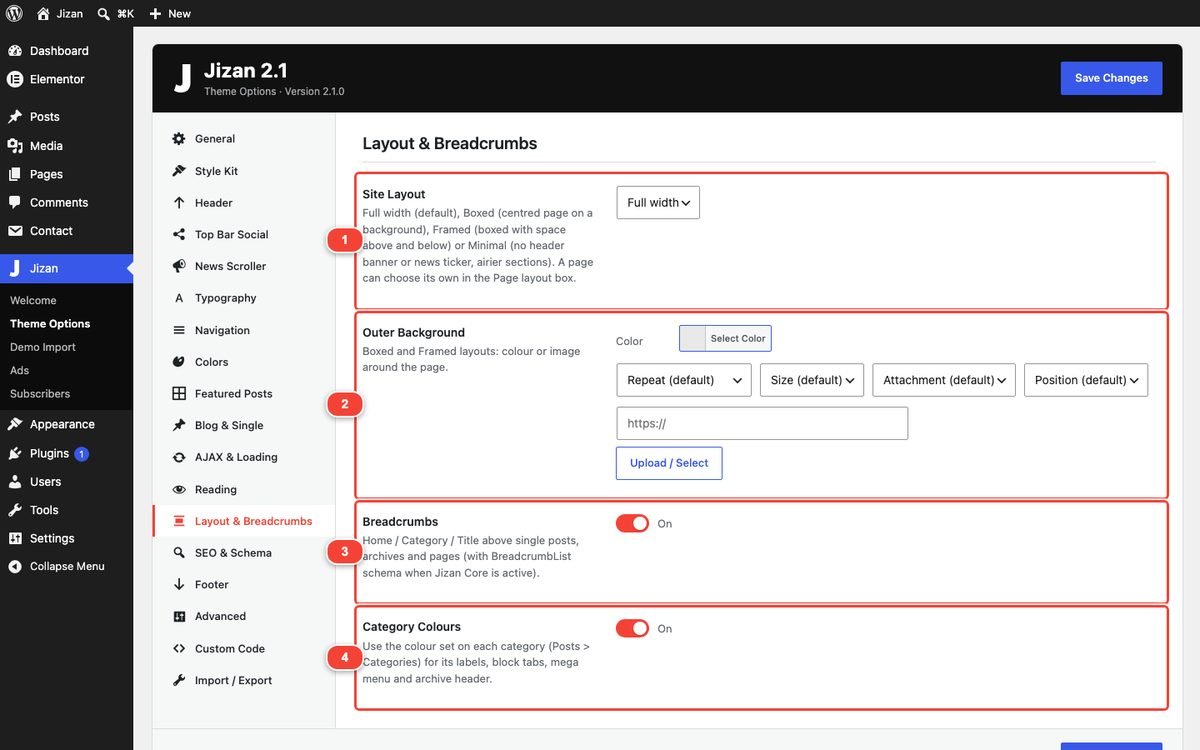
| Option | What it does |
|---|---|
| Site Layout | Full width (default), Boxed (centred page on a background), Framed (boxed with space above and below) or Minimal (no header banner and no news ticker, airier sections). Each page can choose its own in the Page layout box. |
| Outer Background | Colour or image around the page in Boxed and Framed layouts. |
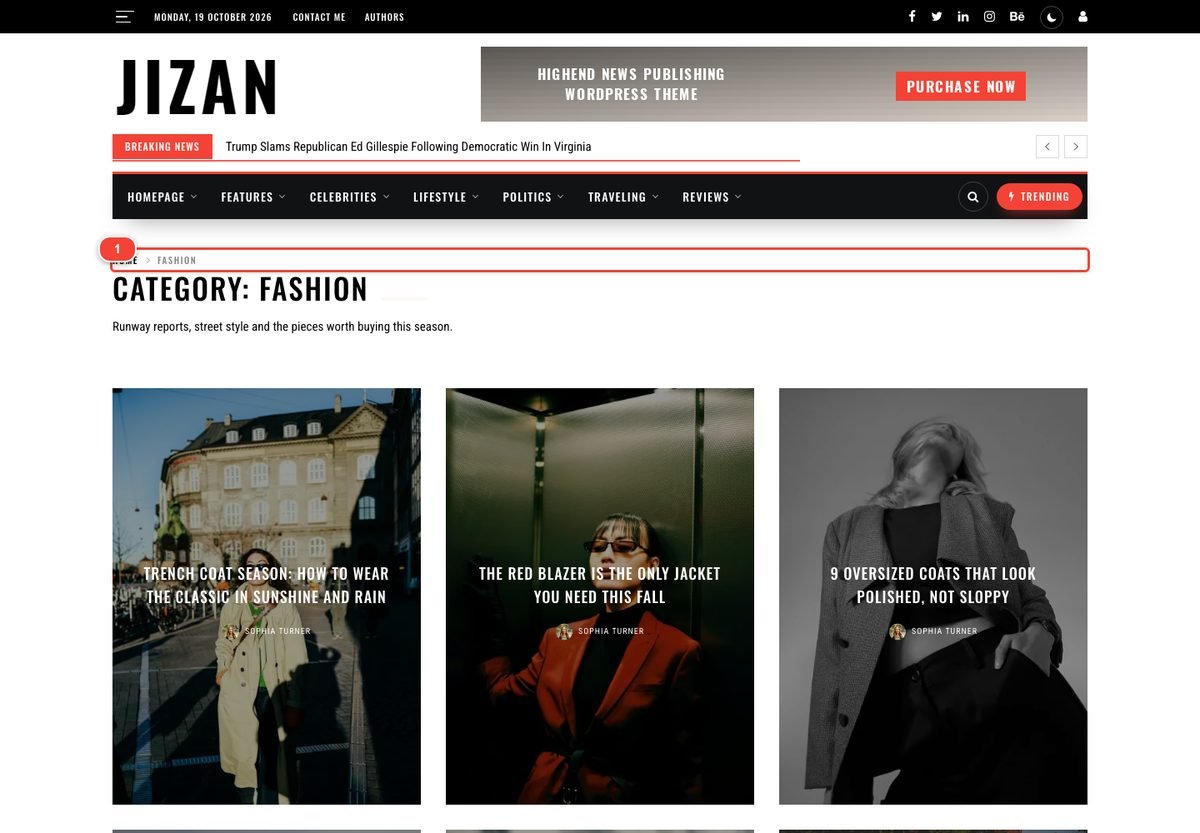
| Breadcrumbs | Home / Category / Title above posts, archives and pages (with BreadcrumbList schema). |
| Category Colours | Uses each category's colour for its labels, block tabs, mega menu and archive header. |
SEO & Schema
Structured Data, Organization Name, Organization Logo and Social Profiles. See Schema.
Footer
Footer Design, Footer Logo, about text, social icons, newsletter, back to top, colours and copyright. Explained field by field in Footer.
Advanced and Custom Code
| Option | What it does |
|---|---|
| Demo Mode: Carry Skin In Links | For theme demo sites only. Leave it off on a normal site. |
| Custom JavaScript / Custom JavaScript Footer | JavaScript printed in the header / footer of every page (for example an analytics snippet). Paste the code without the <script> tags. For snippets that load an external file (<script src=...>), use a plugin such as Site Kit or an ad unit (see AdSense). |
Import / Export
- Download JSON: saves every option as a file (a backup, or to copy your settings to another site).
- Import: paste a Jizan export (or an old Redux export of Jizan) and click Import.
- Reset all options: restores every option to the theme defaults (asks for confirmation; cannot be undone).
4.Header
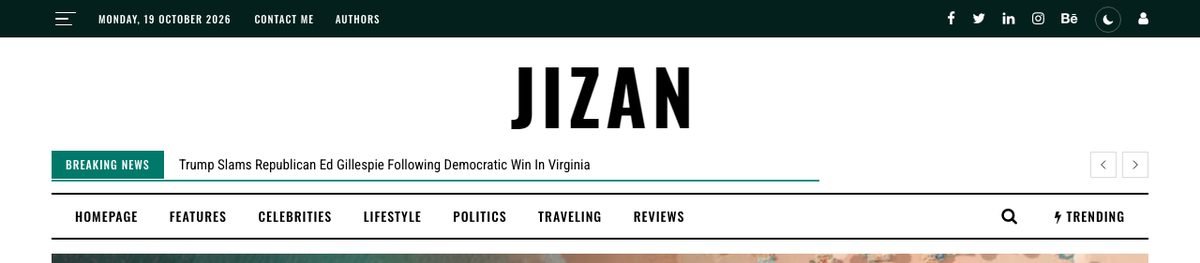
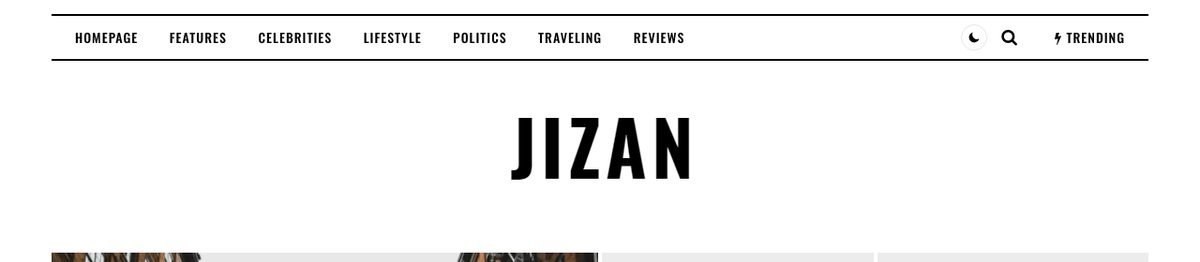
The header is built from parts you can switch on and off: the top bar, the logo area with an optional header ad, the breaking news ticker and the navigation bar. Jizan has 8 header layouts; you pick one for the whole site and can override it on any page.
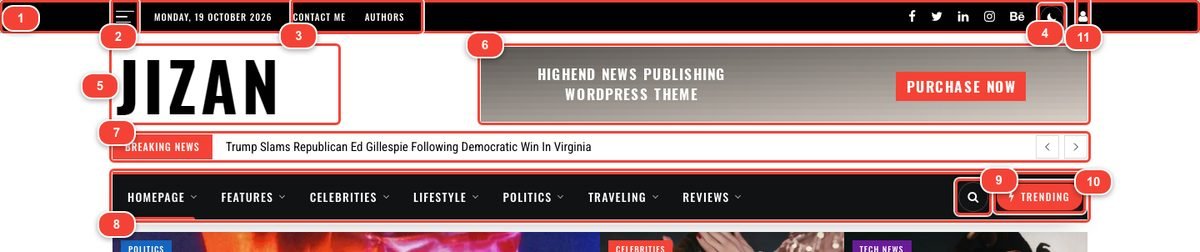
The 8 header styles
| Header | Layout | Used by demo |
|---|---|---|
| Header 1 - classic | Top bar, logo left + 728×90 ad right, ticker, full-width navigation bar. | Main, Magazine, Politics, Fashion, Sports… |
| Header 2 | Top bar, centred logo between two ad areas, ticker, menu between two thin lines. | Travel |
| Header 3 | Top bar, menu bar above the logo, logo + ad below. | Business |
| Header 4 | No top bar: menu bar first (with dark switch), logo + ad below. | Crypto, Video |
| Header 5 | Compact one row: logo left, menu, dark switch, search and Trending right. | Tech, Gaming |
| Header 6 | No top bar: large centred logo, menu bar below. | Health, Minimal Blog |
| Header 7 | Newspaper: top bar with hamburger, large centred logo, no main menu bar (the menu is in the off-canvas panel). | Classic Newspaper, Food |
| Header 8 | No top bar: menu bar on top, large centred logo below. | City Magazine |
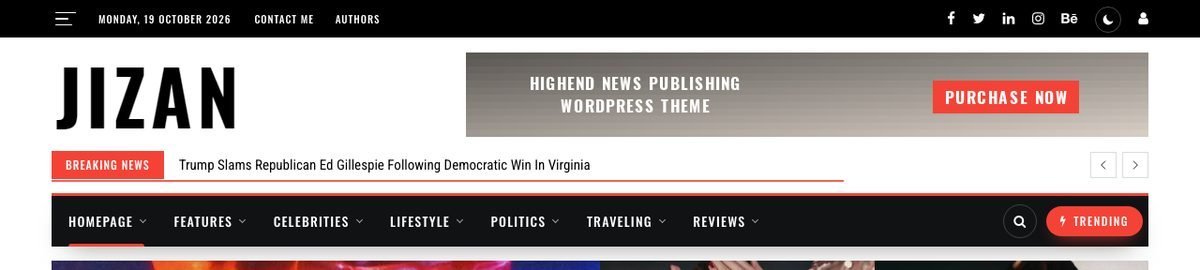





Choose the global header
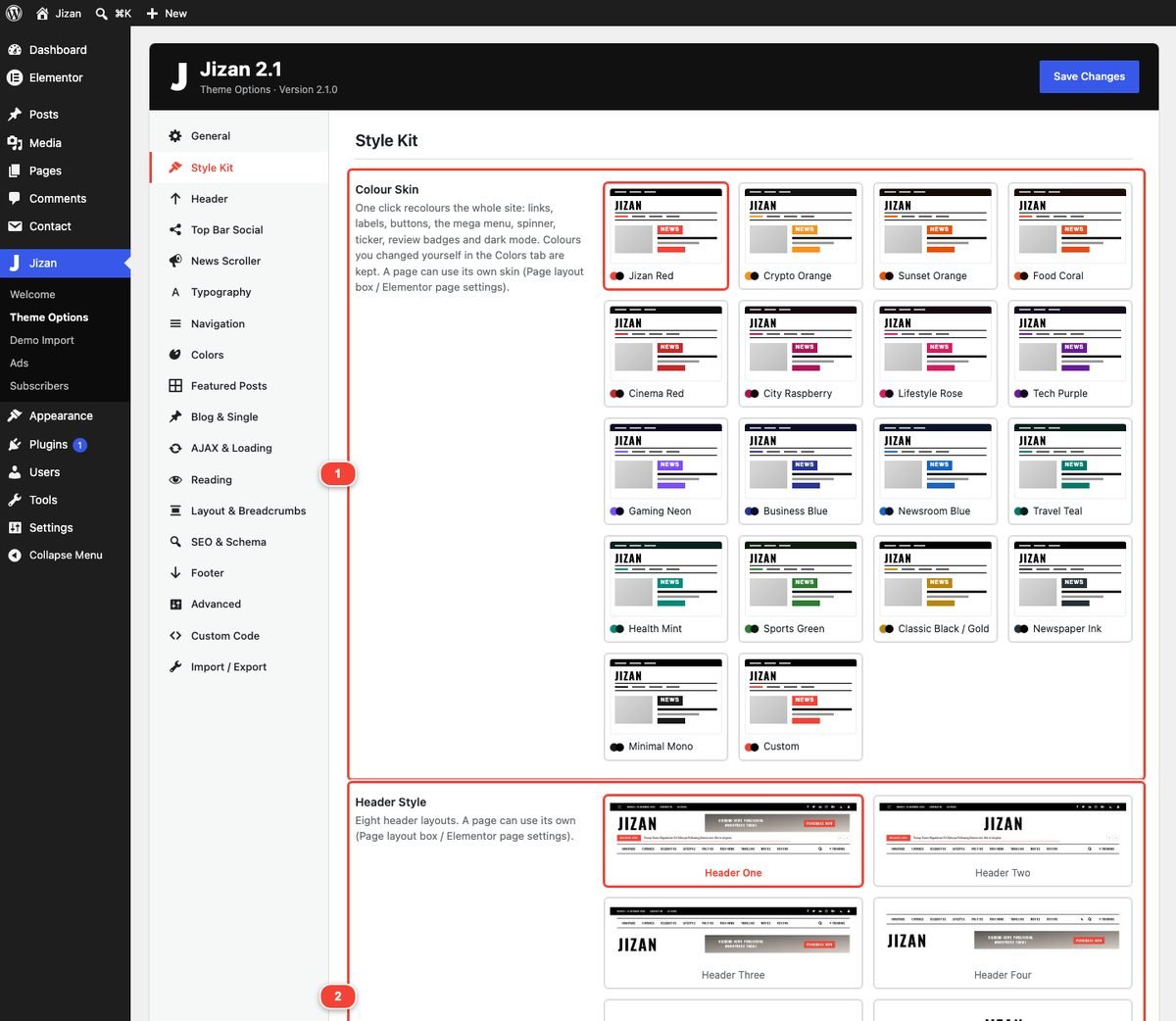
- Go to Jizan → Theme Options → Style Kit.
- Under Header Style click the preview of the header you want.
- Click Save Changes. Every post, archive and page now uses this header (unless a page has its own).
Use a different header on one page
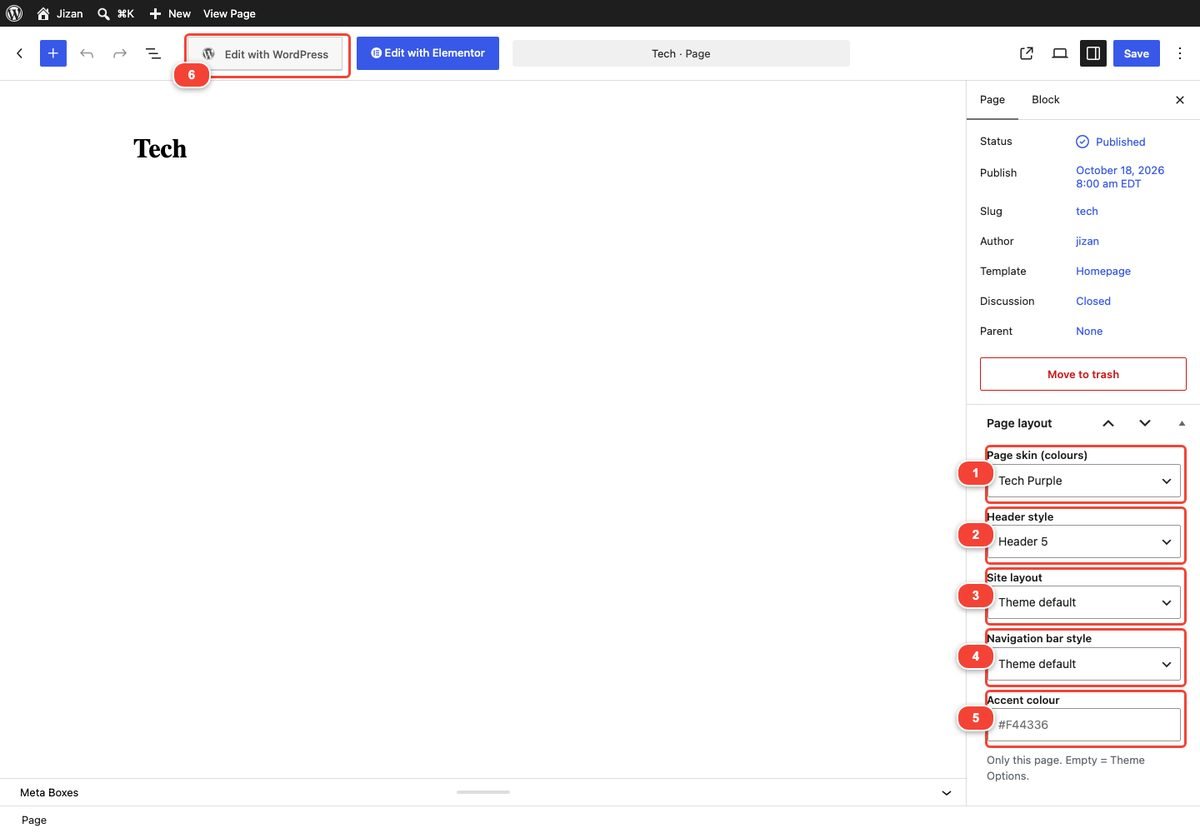
- Open the page in Pages → All Pages → Edit.
- In the right sidebar (tab Page) find the Page layout box.
- Choose a value in Header style (Header 1 - classic … Header 8). "Theme default" = the Theme Options header.
- Click Update / Save.
Inside Elementor you can do the same: click the gear icon (Page Settings) → section Jizan Style Kit → Page header style. Both places are kept in sync. Reload the Elementor preview to see the new header.
Logo, retina logo, dark logo
- Logo: Theme Options → General → Logo → Upload / Select. PNG or SVG with a transparent background works best.
- Retina: upload the logo at twice its display size; the theme scales it down, so it stays sharp on high-density screens.
- Dark logo: Theme Options → Reading → Dark Mode Logo: a light version shown in dark mode. Empty = the normal logo is shown inverted.
- Off-canvas logo: General → Off Canvas Logo. Footer logo: Footer → Footer Logo.
Top bar
Turn it on or off with Theme Options → Header → Top Header. It contains:
- the hamburger (opens the off-canvas panel),
- the date (Date on Top Header, Header Date Color),
- the Top Menu (assign a menu to the "Top Menu" location, see Menu locations),
- social icons (Top Bar Social tab), the dark mode switch and the login icon.
Colours: Header Background Color and Header Links Color. With a Style Kit skin the top bar takes the skin's dark colour automatically.
Breaking news ticker
Configure it in Theme Options → News Scroller (see News Scroller). The ticker shows one headline at a time with a thin progress line, pauses when hovered, and has previous / next arrows. The Minimal site layout hides it.
Header ad
Headers 1, 3 and 4 have a 728 × 90 ad area next to the logo. Fill it in one of two ways:
- Ads manager (recommended): create an ad unit in Jizan → Ads and choose it in the placement Header - next to the logo (replaces the Header Banner widget area). Device targeting and "hide for logged-in users" work here. See Ads manager.
- Widget: leave that placement on "- Off -" and put a widget (for example an Image widget or the Jizan Ad widget) into the widget area Header Banner 728x90 in Appearance → Widgets.
Header 2 uses its own widget areas: Top Banner (Before Header) above the header, and Header Banner 370x Any size Left / Right on both sides of the centred logo.
Navigation bar
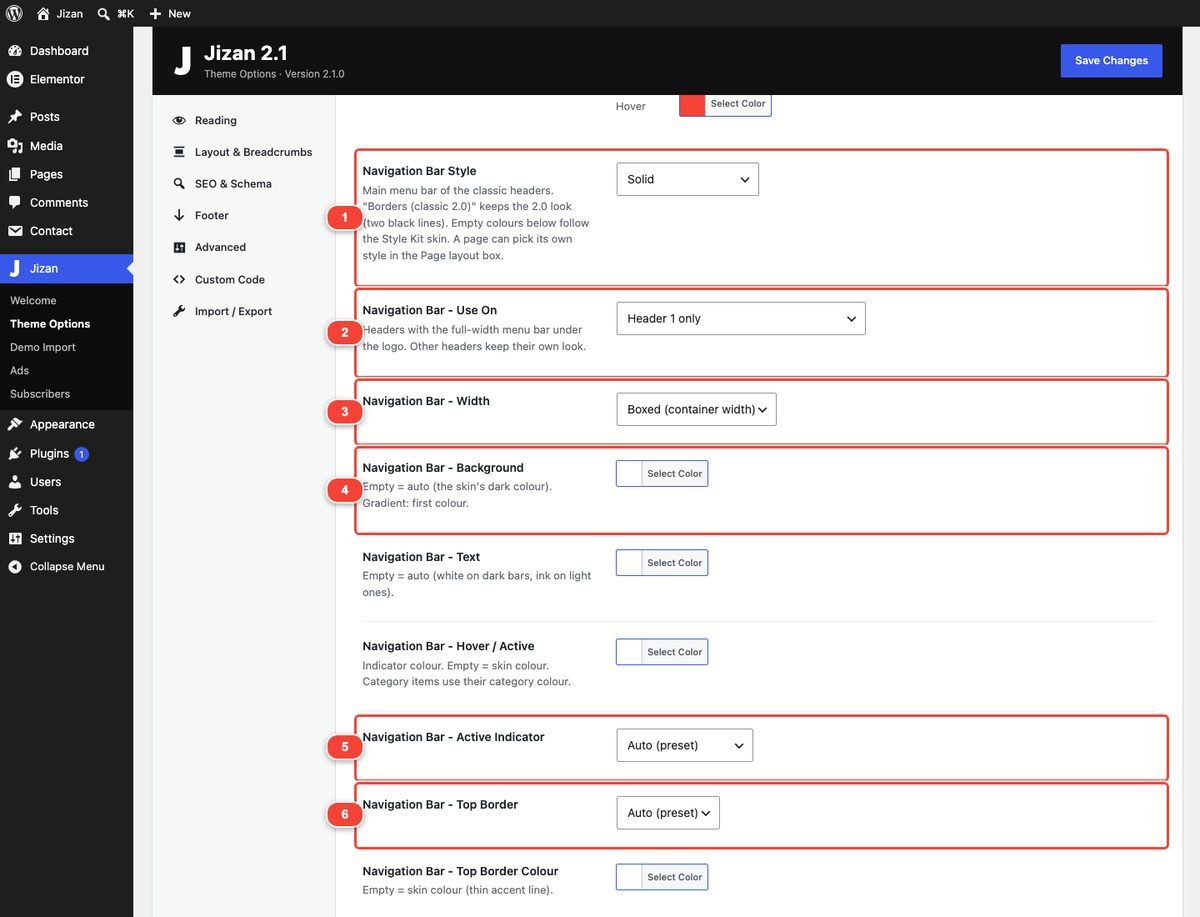
The navigation bar is the menu bar of the classic headers. Its settings are in Theme Options → Header, from Navigation Bar Style to Navigation Bar - Sticky. Empty colour fields follow the Style Kit skin.
| Option | Choices / what it does |
|---|---|
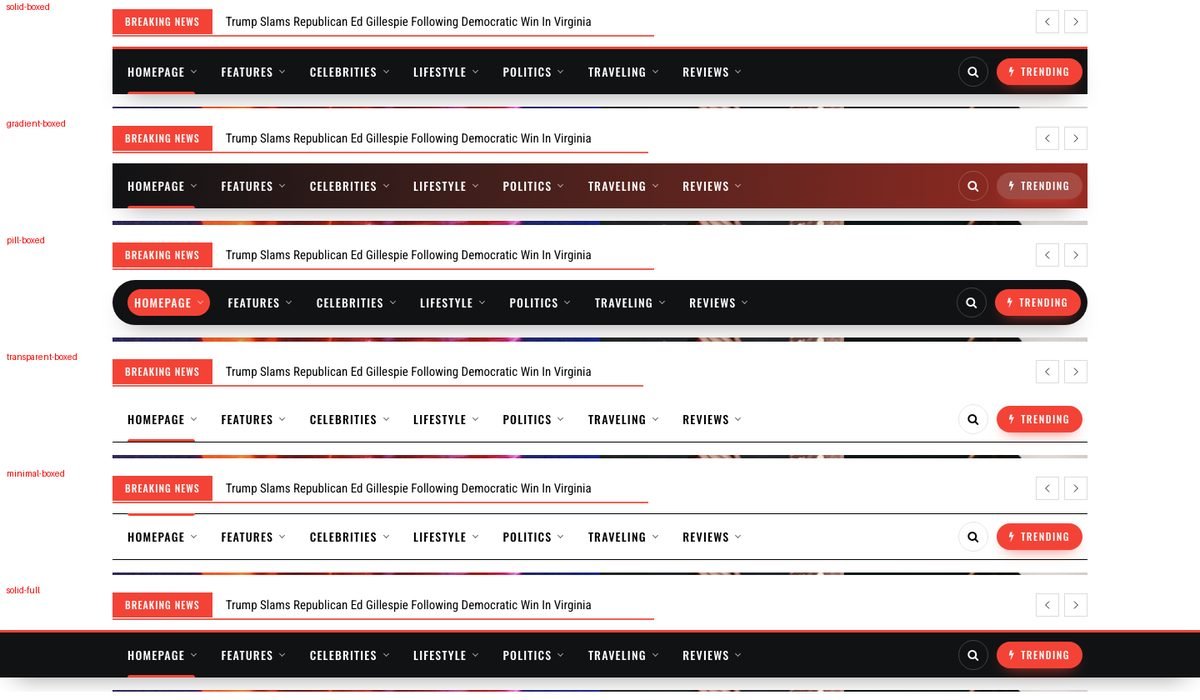
| Navigation Bar Style | Borders (classic 2.0) (the exact 2.0 bar with two black lines), Solid (default ink bar), Gradient, Transparent, Boxed pill, Minimal. All fields below are hidden for "Borders (classic 2.0)". |
| Navigation Bar - Use On | Header 1 only (default) or Headers 1, 2, 6, 8 (all classic menu bars). Other headers keep their own look. |
| Navigation Bar - Width | Boxed (container width) or Full width band. |
| Navigation Bar - Background | Bar colour. Empty = the skin's dark colour. For Gradient this is the first colour. |
| Navigation Bar - Gradient 2nd Colour / Gradient Angle | Gradient only. Angle in degrees, 0-360 (90 = left to right). |
| Navigation Bar - Text | Menu text colour. Empty = white on dark bars, ink on light ones. |
| Navigation Bar - Hover / Active | Indicator colour. Empty = skin colour. Category items use their category colour. |
| Navigation Bar - Active Indicator | Auto (preset), Animated underline, Pill, Top bar, None (colour only). Only one item looks active at a time: when another item is hovered, the current page item hands over its indicator. |
| Top Border / Top Border Colour / Top Border Width (px) | Auto / On / Off; colour (empty = skin colour); width (default 3). |
| Bottom Border / Bottom Border Colour / Bottom Border Width (px) | Auto / On / Off; colour (empty = hairline); width (default 1). |
| Navigation Bar - Shadow | Auto / On / Off. |
| Navigation Bar - Height (px) | 40-72 (default 54; the 2.0 bar was 46). |
| Font Size / Font Weight / Letter Spacing / Uppercase | 12-18 px, 400-700, 0-2 px, on/off. The font family comes from Typography → Mega Menu. |
| Navigation Bar - Sticky | Off, Always visible, Smart (hide on scroll down) (default): the bar docks at the top, slims down, hides while scrolling down and comes back when scrolling up. |
Search window and live search
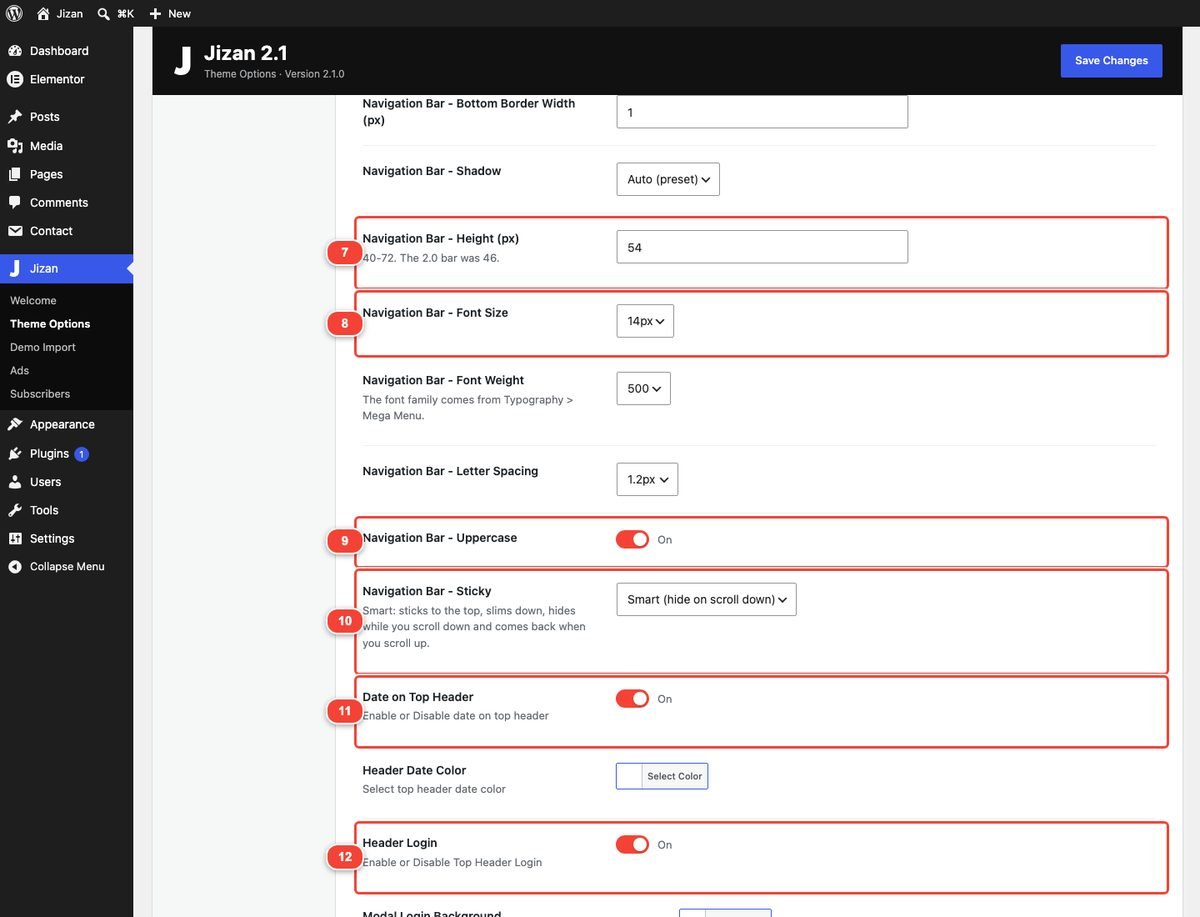
- Turn on Theme Options → Navigation → Modal Search. A round search button appears in the menu bar (and in the phone menu bar).
- Turn on AJAX & Loading → Live Search: results (posts with image, category and date, matching categories and authors) appear while typing, from 2 characters. Arrow keys + Enter work; Esc closes.
- Optional: Search Overlay Tint (glass colour) and Popular Searches (chips shown before typing, separated by commas).

Dark mode switch
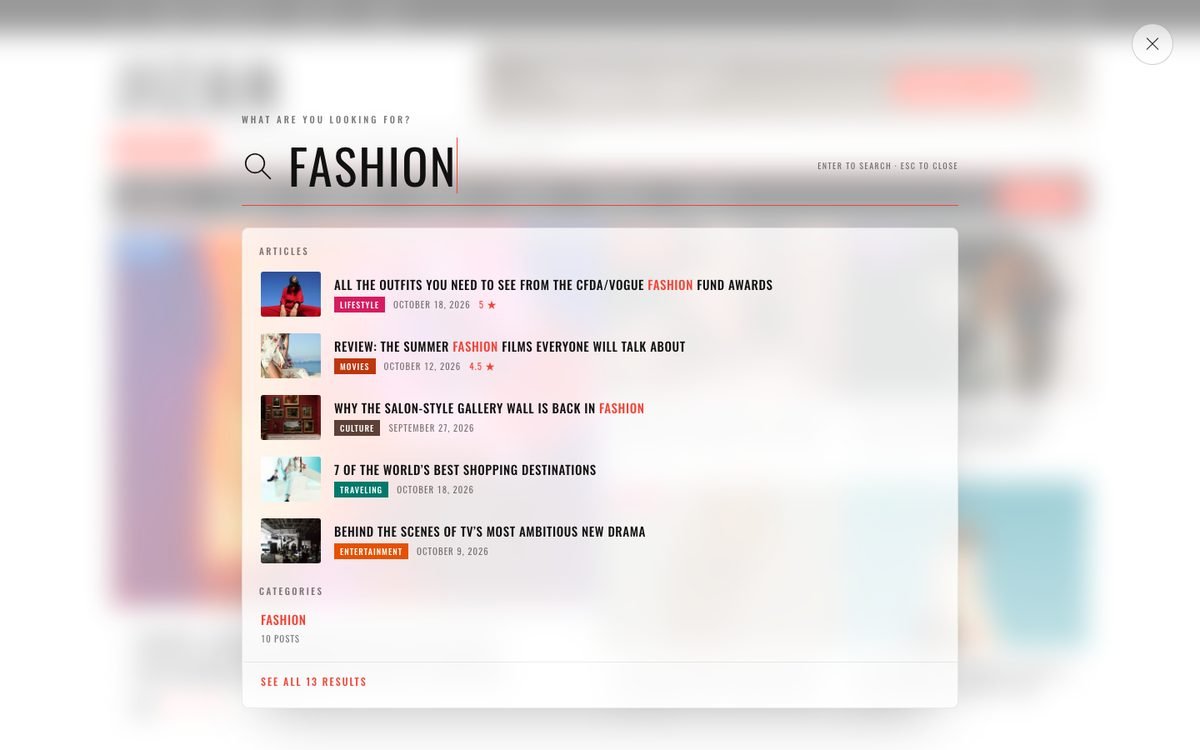
The sun/moon button appears automatically when Theme Options → Reading → Dark Mode is on: in the top bar (Headers 1, 2, 3, 7), at the end of the main menu (Headers 4, 5, 6, 8), in the phone bar and in the off-canvas panel. See Dark mode.
Account / login window
- Theme Options → Header → Header Login shows the user icon in the top bar. It opens a window with Login, Register and Lost password (no page reload).
- The Register tab only appears when Settings → General → Membership: Anyone can register is ticked.
- Modal Login Background sets an optional background image for the window.
5.Menus and mega menu
Jizan has four menu locations and three kinds of mega menu. Everything is done in Appearance → Menus; there is no separate mega menu builder to learn.
Create a menu
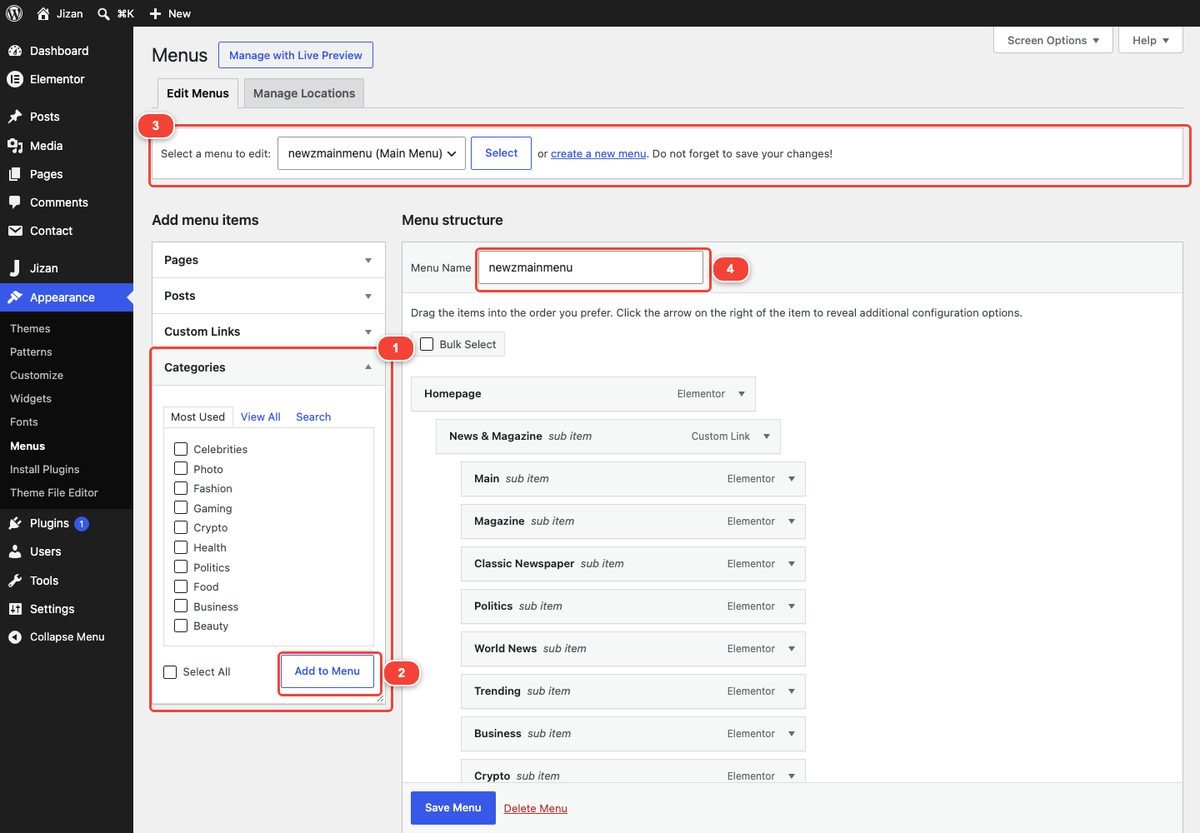
- Go to Appearance → Menus and click create a new menu. Type a name (for example "Main Menu") and click Create Menu.
- In Add menu items (left) open Pages, Posts, Custom Links or Categories, tick items and click Add to Menu.
- Drag items to reorder them. Drag an item slightly to the right to make it a sub item of the item above.
- Click the small arrow on an item to open its settings (Navigation Label, CSS Classes, Jizan fields).
- Click Save Menu.
Menu locations
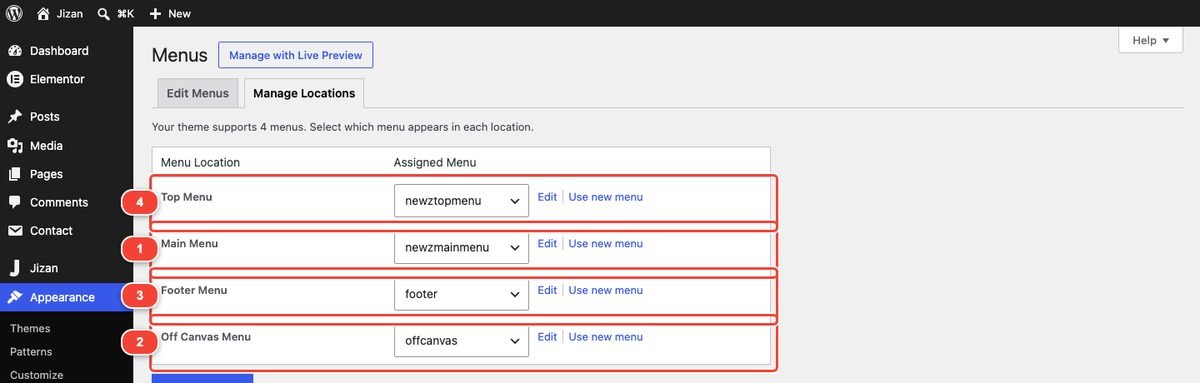
| Location | Where it appears |
|---|---|
| Main Menu | The navigation bar (all headers except 7), the phone menu and the off-canvas panel. Mega menus work here. |
| Off Canvas Menu | The "Quick links" list in the off-canvas panel (or the whole panel menu, see Off-canvas). |
| Footer Menu | The links in the bottom footer bar (one level). |
| Top Menu | The small links in the top bar next to the date. |
Assign menus in Appearance → Menus → Manage Locations, or tick the location under "Menu Settings" at the bottom of a menu.
The mega menu types
| Type | How to create it | Demo example |
|---|---|---|
| Category mega menu (AJAX posts) | Add a category as a top-level item. Nothing else to set. Optional: add sub-categories as its sub items to get a sub-category list on the left. | Celebrities, Lifestyle, Politics, Traveling |
| Mega columns (link columns + preview) | Tick Mega columns (Main Menu): sub-items are column titles, their sub-items the links on a top-level item. | Homepage (3 columns) |
| Column drop-down | A top-level item whose sub items have their own sub items (3 levels). Each sub item becomes a column. | Features (4 columns) |
| Picked posts | Give a top-level item the CSS class jizan-mega-posts; its sub items (posts) show as image cards. | Reviews |
Category mega menu with AJAX posts
Every category placed at the top level of the Main Menu automatically becomes a mega panel. When the visitor hovers or focuses it, the panel opens with a spinner and loads the category's latest posts (image, title, date and review score) without reloading the page.
- Without sub items: the panel shows 4 post cards of that category.
- With sub items (sub-categories): the sub-categories are listed on the left; the panel shows 3 cards. Hovering a sub-category loads its own 3 latest posts.
- The AJAX loading is controlled by Theme Options → AJAX & Loading → AJAX Mega Menu. If you turn it off, the posts are printed directly in the page (no loading on hover).
- The category colour (Posts → Categories → Category colour) is used as the accent of the item.
- Without JavaScript the panel shows a link "All posts in <Category>".

Worked example: build the "Celebrities" mega menu
- Create the categories in Posts → Categories: "Celebrities", then "Red Carpet", "Interviews" and "Style Icons" with Parent Category = Celebrities. Optional: pick a Category colour for Celebrities.
- Go to Appearance → Menus and select your Main Menu.
- Open the Categories box (click View All if needed), tick Celebrities, Red Carpet, Interviews and Style Icons, and click Add to Menu.
- Drag Celebrities to the top level (no indent).
- Drag Red Carpet, Interviews and Style Icons under it, slightly to the right, so they show "sub item".
- Click Save Menu. Hover "Celebrities" on your site: the sub-categories appear on the left and 3 posts on the right.

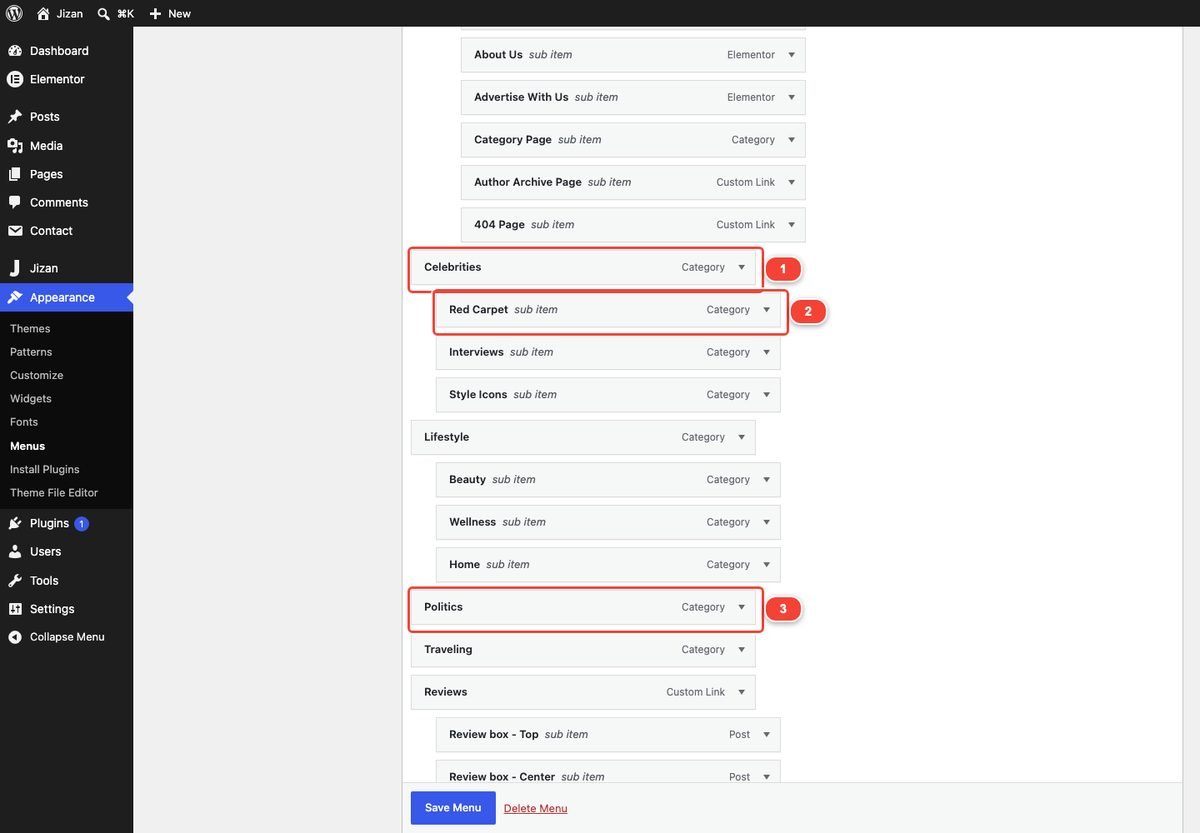
jizan_mega_ajax_posts.Multi-column link mega menu (Homepage, 3 columns)
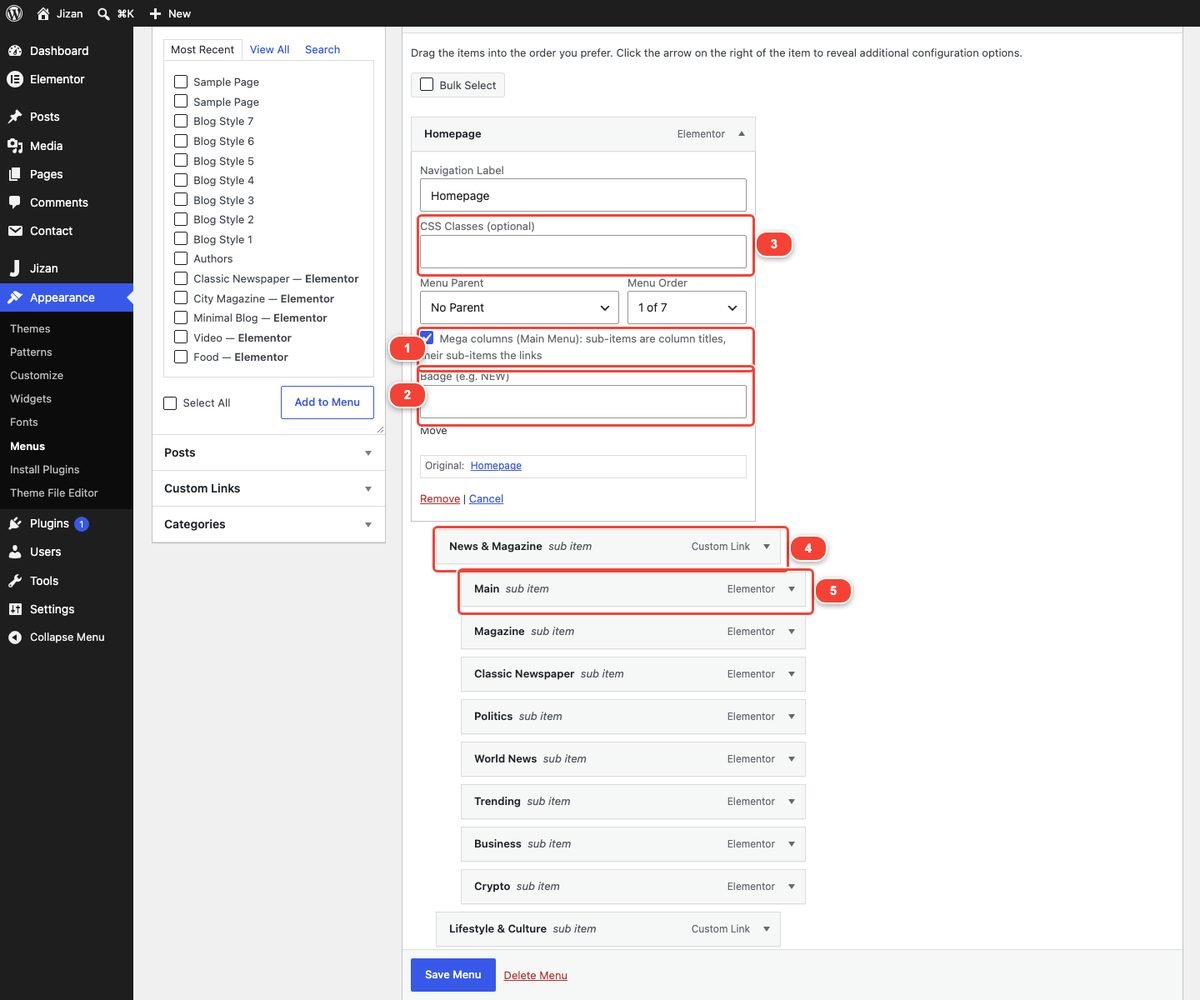
The "Homepage" menu of the demo is a mega columns panel: three column titles, a list of links under each and a preview picture on the right that shows the featured image of the link you hover.
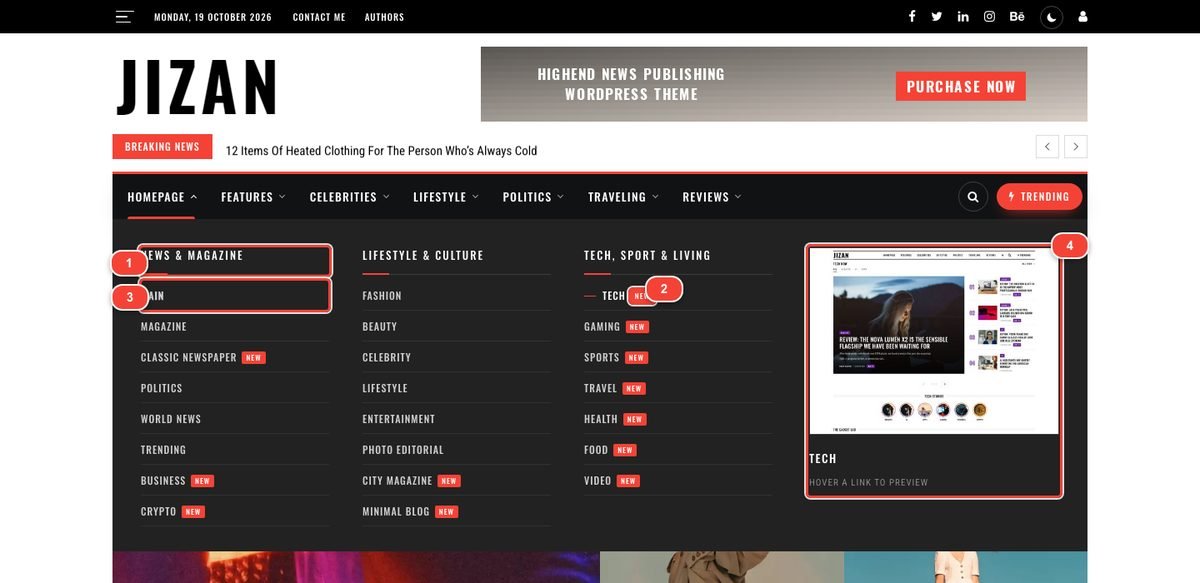
#); 3 links (the sub items of the title), here with the class jizan-menu-highlight; 2 a "New" badge; 4 the preview pane (featured image of the hovered page or post).Worked example: build a 3-column "Homepage" menu
- In Appearance → Menus add the top-level item, for example the page "Homepage" (or a Custom Link with URL
#). - Open Custom Links, enter URL
#and Link Text "News & Magazine", click Add to Menu. Repeat for "Lifestyle & Culture" and "Tech, Sport & Living". These are the column headings: a Custom Link with the URL#is printed as a plain title, not a link. - Drag the three headings under "Homepage" (sub items, level 2).
- Add the pages you want in the columns (Pages box) and drag each under its heading (level 3).
- Open the "Homepage" item (click its arrow) and tick Mega columns (Main Menu): sub-items are column titles, their sub-items the links.
- Optional: type
Newin Badge (e.g. NEW) on any link, or add the CSS classjizan-menu-highlightto highlight one link. - Set a featured image on the linked pages: it becomes the hover preview (pages without an image show no preview).
- Click Save Menu.
jizan-mega-columns. 4 Column title (Custom Link, URL #). 5 A link inside the column.Each column holds about 8 links comfortably. Three columns plus the preview fill the panel; with more columns the preview is narrower.
Column drop-down (Features, 4 columns)
A top-level item that is not a category and has three levels (item → sub items → their sub items) opens as a full-width drop-down with one column per sub item. This is how the demo's "Features" menu works. The columns open one after another with a soft animation.
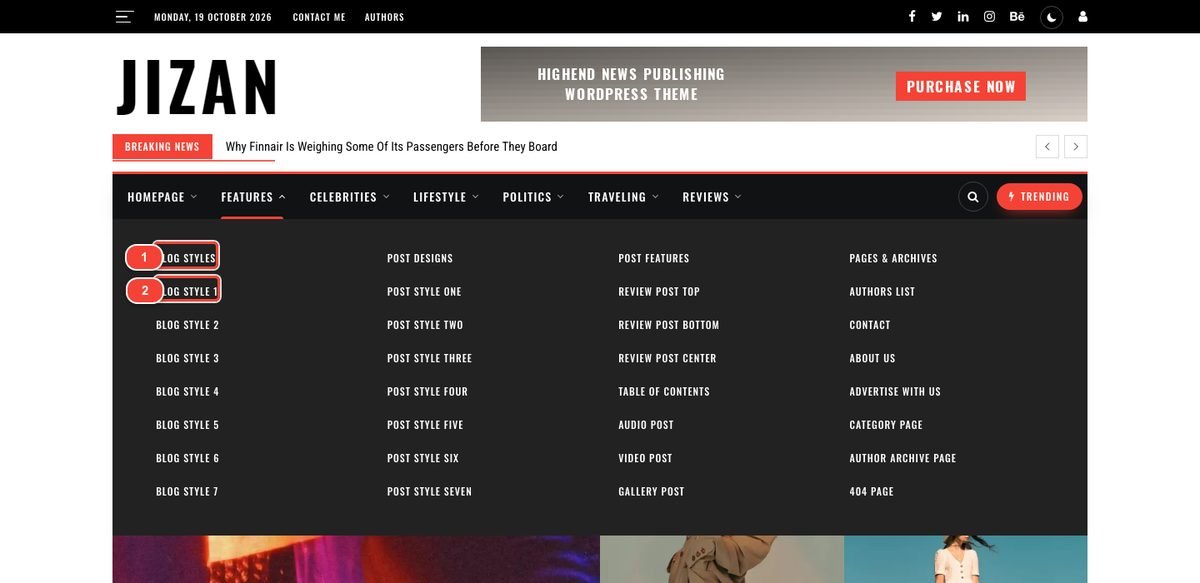
Worked example: build a 4-column "Features" menu
- Add a Custom Link with URL
#!and Link Text "Features" (top level).#!keeps the page from jumping when the item is clicked, and in the off-canvas panel it simply opens the accordion. - Add four Custom Links with URL
#!: "Blog Styles", "Post Designs", "Post Features", "Pages & Archives". Drag them under "Features" (level 2). These are the column titles. - Add your pages and posts and drag them under the right column title (level 3). Up to 7-8 links per column look best.
- Do not tick "Mega columns" here (that is the other layout with the preview pane).
- Click Save Menu.
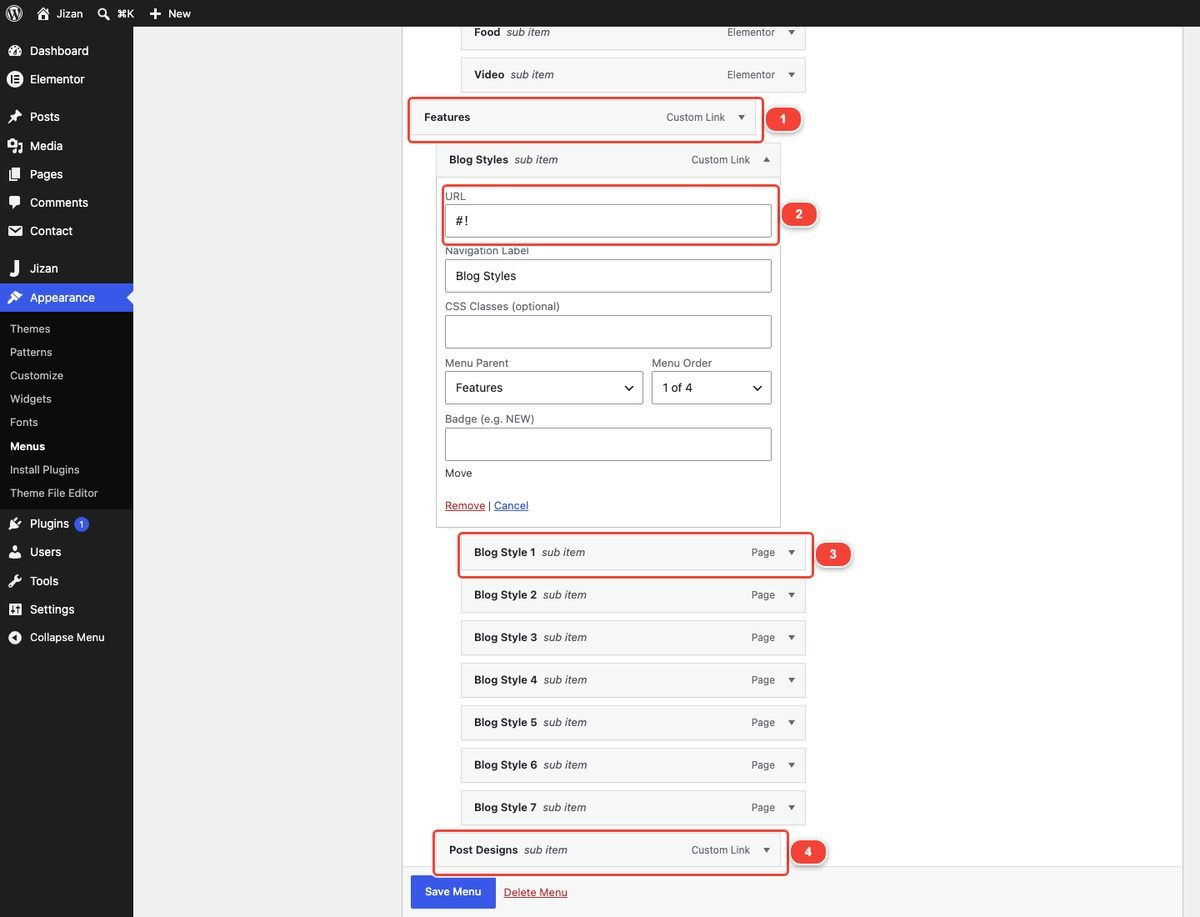
#!; 3 links (level 3); 4 next column title.Picked-posts mega menu (Reviews)
- Add a Custom Link (URL
#) "Reviews" at the top level. - Open it and type
jizan-mega-postsin CSS Classes (optional) (enable the field in Screen Options first). - Add the posts you want to feature (Posts box) as its sub items. Each post is shown as an image card with title and date.
- Click Save Menu.
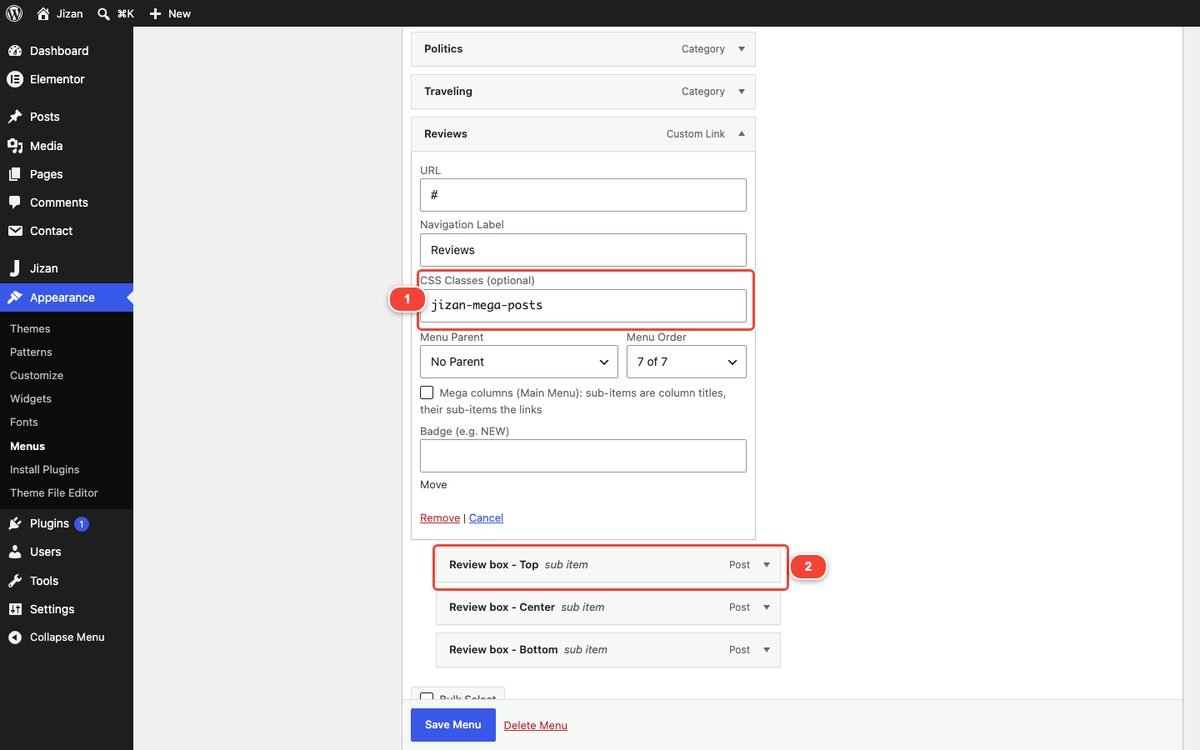

jizan-mega-posts, 2 picked posts as sub items. Right: the result on the site.Labels and badges
- Badge: every menu item has the field Badge (e.g. NEW) (up to 12 characters, for example NEW, HOT, LIVE). It works in the Main Menu, the off-canvas panel, the footer and the top menu.
- CSS class shortcuts:
jizan-badge-newadds a "New" badge;jizan-menu-highlighthighlights a link (bold white with an accent line).

Icons in menu items
Jizan loads Font Awesome 4.7. Put an icon in the Navigation Label of any item, before the text, for example:
<i class="fa fa-bolt"></i> Breaking
<i class="fa fa-play-circle"></i> Video
Icon names: see the Font Awesome 4.7 icon list (fontawesome.com/v4/icons). Keep labels short so the bar fits on one line.
Mobile behavior
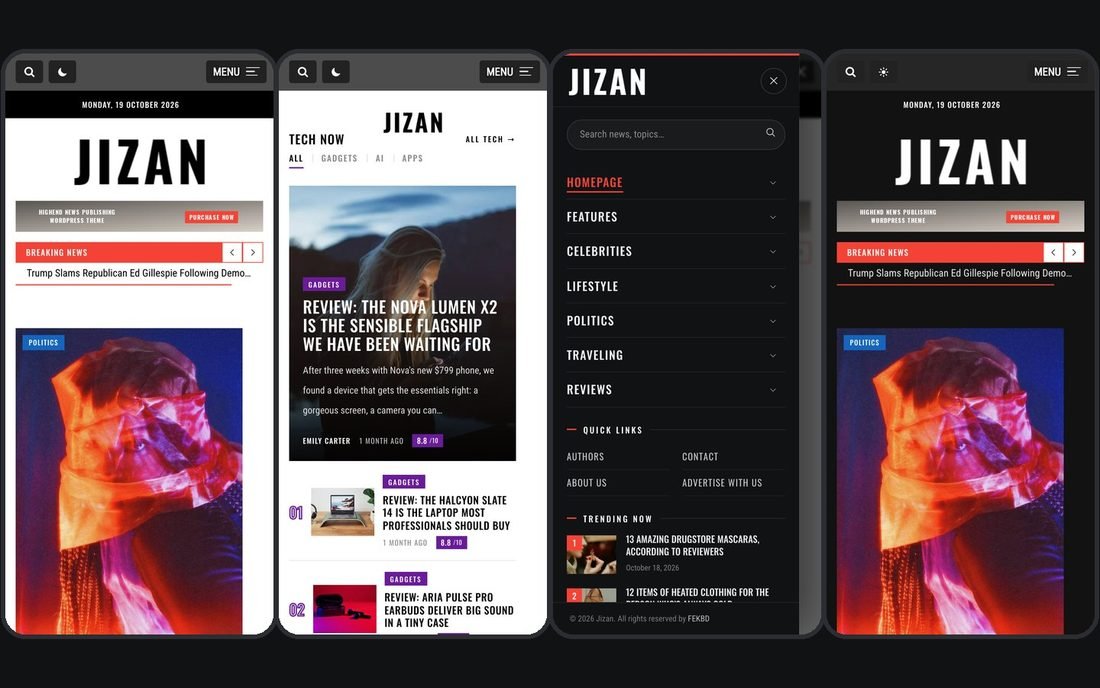
- Below 960 px the navigation bar is replaced by the phone bar with a MENU button, the search button and the dark switch.
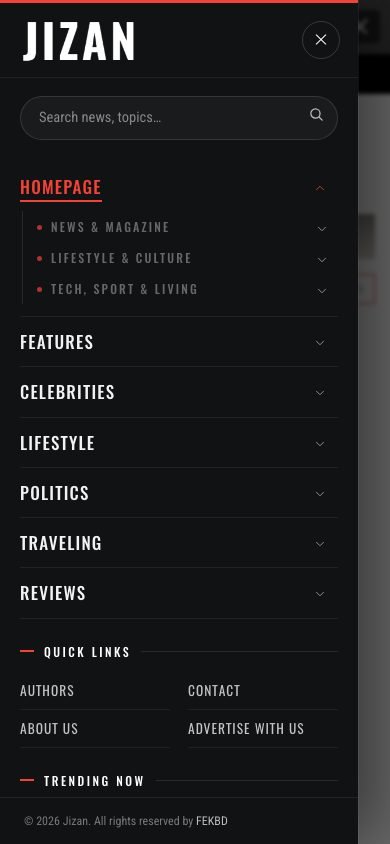
- The MENU button opens the off-canvas panel with the Main Menu as an accordion: mega-column titles become groups, the Features columns become sub-accordions, category items open their sub-categories.
- Category items that have no sub items in the menu automatically list their sub-categories (option Off-canvas: Automatic Sub-categories).
- Between 980 and 1199 px the desktop bar becomes tighter so up to 7 top-level items fit on one row. Keep the Main Menu to about 7 top-level items.
6.Off-canvas menu
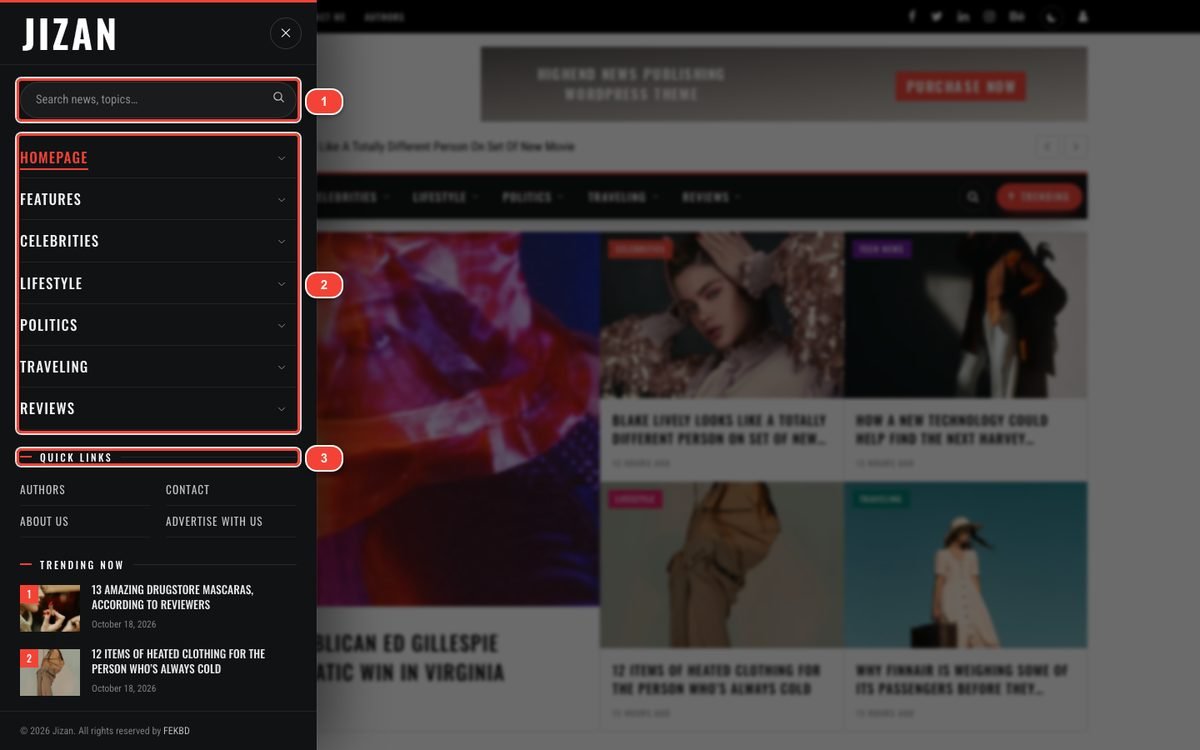
The off-canvas panel slides in from the side when the visitor clicks the hamburger (top bar) or the MENU button on phones. It contains the logo, a live search field, the Main Menu as an accordion, quick links, trending posts, social icons, a dark mode switch, an optional card with a button and the copyright line. Esc, the X button or a click on the page closes it; keyboard focus stays inside while it is open.
Options
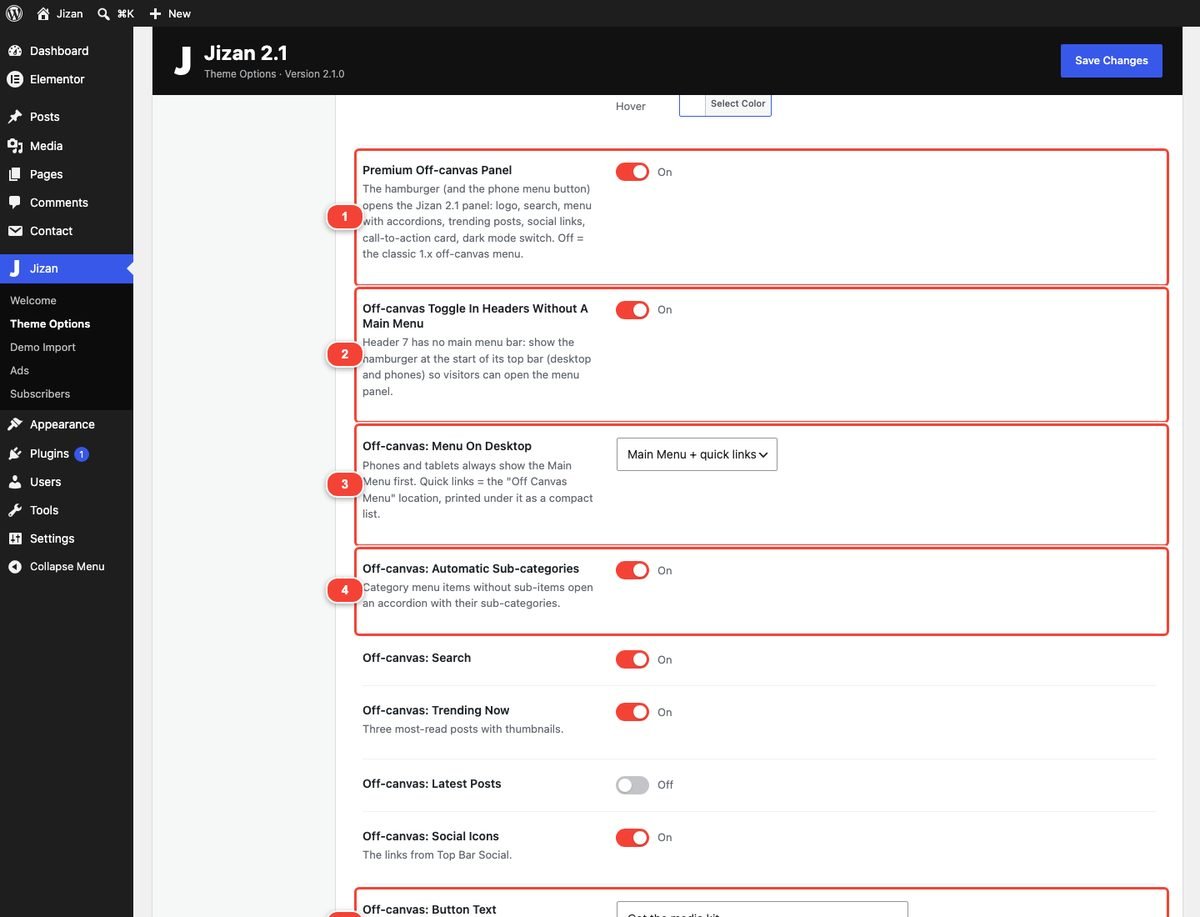
All in Jizan → Theme Options → Header, under Premium Off-canvas Panel:
| Option | What it does |
|---|---|
| Premium Off-canvas Panel | On (default) = the 2.1 panel. Off = the classic 1.x off-canvas menu (then Offcanvas background Color / Offcanvas Menu Color apply). |
| Off-canvas Toggle In Headers Without A Main Menu | Header 7 has no menu bar: shows the hamburger at the start of its top bar so visitors can still open the menu. |
| Off-canvas: Menu On Desktop | Main Menu + quick links (default) or Off Canvas Menu only. Phones and tablets always show the Main Menu first. |
| Off-canvas: Automatic Sub-categories | Category items without sub items open an accordion with their sub-categories (up to 8). |
| Off-canvas: Search | Live search field at the top. |
| Off-canvas: Trending Now | The three most-read posts with thumbnails. |
| Off-canvas: Latest Posts | A latest posts list (off by default). |
| Off-canvas: Social Icons | Icons from the Top Bar Social URLs. |
| Off-canvas: Button Text / Button Link | A call-to-action button (for example "Subscribe"). Empty text = no button. |
| Off-canvas: Card Title / Card Text | A small card around the button at the bottom (for example "Advertise with us"). Empty title and text = the button only. |
| Off-canvas: Dark Mode Switch | Dark mode row in the panel. |
| Off-canvas: Copyright Line | The footer copyright text at the bottom of the panel. |
The panel logo is General → Off Canvas Logo; the menu font is Typography → Off-Canvas Navigation.
Menu location and quick links
- Create a short menu (for example Authors, Contact, About Us, Advertise With Us).
- Assign it to the location Off Canvas Menu (Appearance → Menus → Manage Locations).
- It appears as "Quick links" in a 2-column grid under the Main Menu. With Off-canvas: Menu On Desktop = Off Canvas Menu only, desktop visitors see only this menu.
The card
Example from the demo: Off-canvas: Card Title "Advertise with us", Off-canvas: Card Text "Put your brand in front of 4.2 million engaged readers…", Off-canvas: Button Text "Get the media kit", Off-canvas: Button Link = your Advertise page URL. Use it for a newsletter, an app download or a subscription offer.
7.Footer
Jizan 2.1 has a premium footer: a top band with logo, about text, social icons and a newsletter sign-up; four widget columns (Footer A-D); and a bottom bar with copyright, footer menu and a back-to-top button. The classic 2.0 three-column footer is still available.

Footer options
Jizan → Theme Options → Footer:

| Option | What it does |
|---|---|
| Main Footer Visibility | Shows or hides the top band and the widget columns (the bottom bar stays). |
| Footer Design | Premium (2.1) or Classic (2.0). |
| Footer Logo | Light logo for the dark footer. Empty = the white Jizan logo, so upload your own. |
| Footer About Text | Short text next to the logo (plain text). |
| Footer Social Icons | Icons from the Top Bar Social URLs. |
| Footer Newsletter | The email sign-up in the band (needs Jizan Core). |
| Newsletter Title / Newsletter Text | Heading and line above the form. |
| Newsletter Form Action URL | Optional. Paste your Mailchimp (or other service) embedded form "action" URL to send sign-ups there. Empty = the built-in list in Jizan → Subscribers. |
| Back to Top Button | The "Back to top" link in the bottom bar. |
| Main Footer Background / Bottom Footer Background | Background colours. |
| Bottom Footer Color / Footer Menu Links Color | Copyright text and footer menu colours. |
| Footer Copyright Text | Your copyright line. {year} becomes the current year; links (<a>) are allowed. Example: © {year} My Magazine. All rights reserved. |
How to edit each part
- Logo, about text, newsletter, copyright: Theme Options → Footer, then Save Changes.
- Social icons: enter your URLs in Theme Options → Top Bar Social.
- The four columns: Appearance → Widgets → widget areas Footer A, Footer B, Footer C, Footer D. The demo uses: A = Custom HTML (about text + contact lines), B = Jizan Posts (thumbnails list), C = Jizan Categories (colour dots), D = Tag Cloud. Empty areas are skipped and the other columns share the width.
- Footer menu: create a menu and assign it to the Footer Menu location (one level, no sub items).
- Subscribers: sign-ups from the built-in list are listed in Jizan → Subscribers. They are included in WordPress's Tools → Export Personal Data / Erase Personal Data.
Category and tag limits
In the footer columns the WordPress Categories widget lists only top-level categories, 8 at most, sorted by number of posts; the Tag Cloud shows the 15 most used tags. This keeps the columns even. Developers can change it with the filters jizan_footer_categories_args and jizan_footer_tag_cloud_number, for example:
add_filter( 'jizan_footer_tag_cloud_number', function () { return 25; } );8.Ads manager
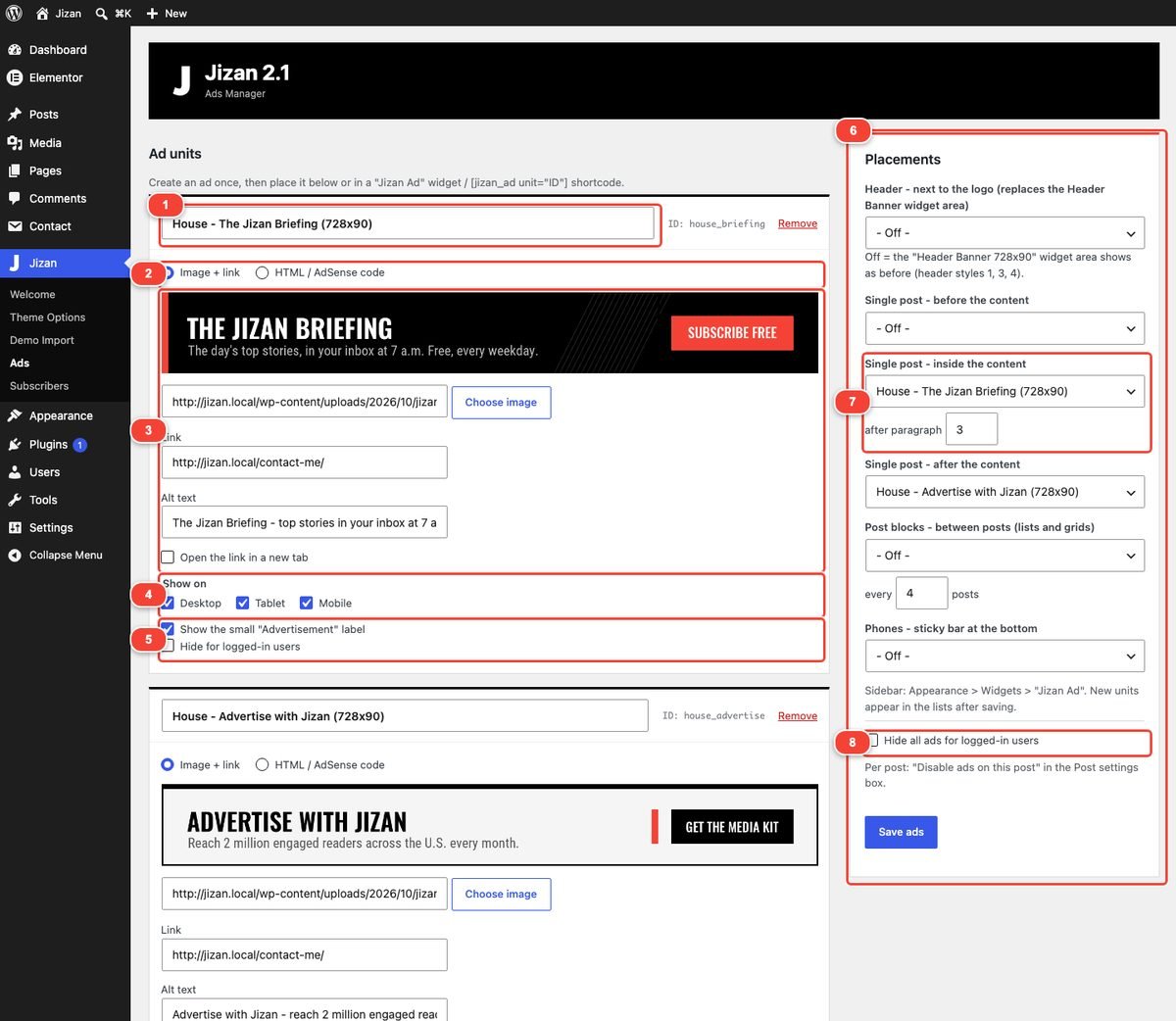
The ads manager (Jizan → Ads, from Jizan Core) lets you create an ad once as an ad unit and then show it in any placement: the header, inside articles, between posts, the sidebar, a phone sticky bar or any Elementor page. Ads are device-aware and work with page caching (device rules are CSS based).
Create an ad unit
- Go to Jizan → Ads and click + Add ad unit (under the list of units).
- Type a name, for example "Leaderboard - Newsletter". The name is what you choose later in placements, widgets and the Elementor Ad Slot.
- Choose the type:
- Image + link: click Choose image (or paste an image URL), fill Link and Alt text, and tick Open the link in a new tab if wanted.
- HTML / AdSense code: paste the code into Ad code. Scripts are only saved for administrators (users with the "unfiltered_html" capability).
- Show on: tick Desktop (1200 px and wider), Tablet (768-1199 px) and/or Mobile (below 768 px).
- Optional: Show the small "Advertisement" label and Hide for logged-in users.
- Click Save ads. After saving, the unit shows its ID (for example
ID: ad1a2b3c4d) and appears in every placement list.
Placements
In the Placements box choose a unit for each place (or "- Off -") and click Save ads.
| Placement | Where it shows |
|---|---|
| Header - next to the logo (replaces the Header Banner widget area) | The 728×90 area of Headers 1, 3 and 4. Off = the "Header Banner 728x90" widget area shows as before. |
| Single post - before the content | Above the article text. |
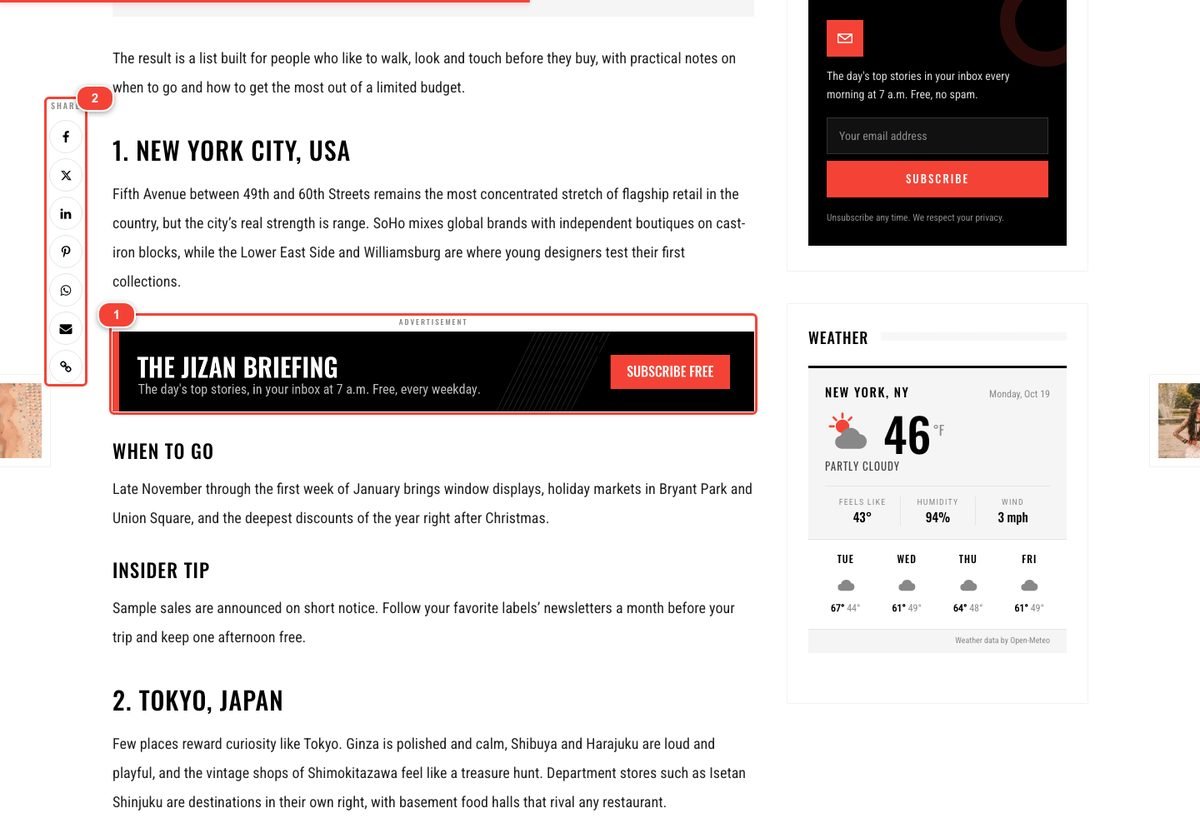
| Single post - inside the content | Inside the article after paragraph N (1-20, default 3). Only top-level paragraphs count, and it is never placed after the last paragraph. |
| Single post - after the content | Below the article text. |
| Post blocks - between posts (lists and grids) | Inside grid and list blocks, every N posts (1-30, default 4). Patterned layouts (featured and panel layouts) are skipped so their design stays intact. |
| Phones - sticky bar at the bottom | A closable bar fixed at the bottom of the screen on phones. |
| Sidebar (widget) | Appearance → Widgets → add the Jizan Ad widget to any widget area and pick a unit. |
| Elementor (widget) | The Ad Slot widget (Jizan category) → Ad Unit. Place it between any sections of a homepage. (It shows on the front end; the editor preview stays empty.) |
| Anywhere (shortcode) | [jizan_ad unit="ID"] in posts, pages, text widgets. |
Device targeting and logged-in users
- Untick a device in Show on to hide the unit there. Each placement holds one unit, so for different sizes per device use a responsive unit (AdSense responsive, or an image that scales), or show a desktop unit in one placement and a mobile unit (for example 320×100) in another, such as the phone sticky bar.
- Hide for logged-in users (per unit) or Hide all ads for logged-in users (global, in the Placements box) keeps your own pages clean while you work.
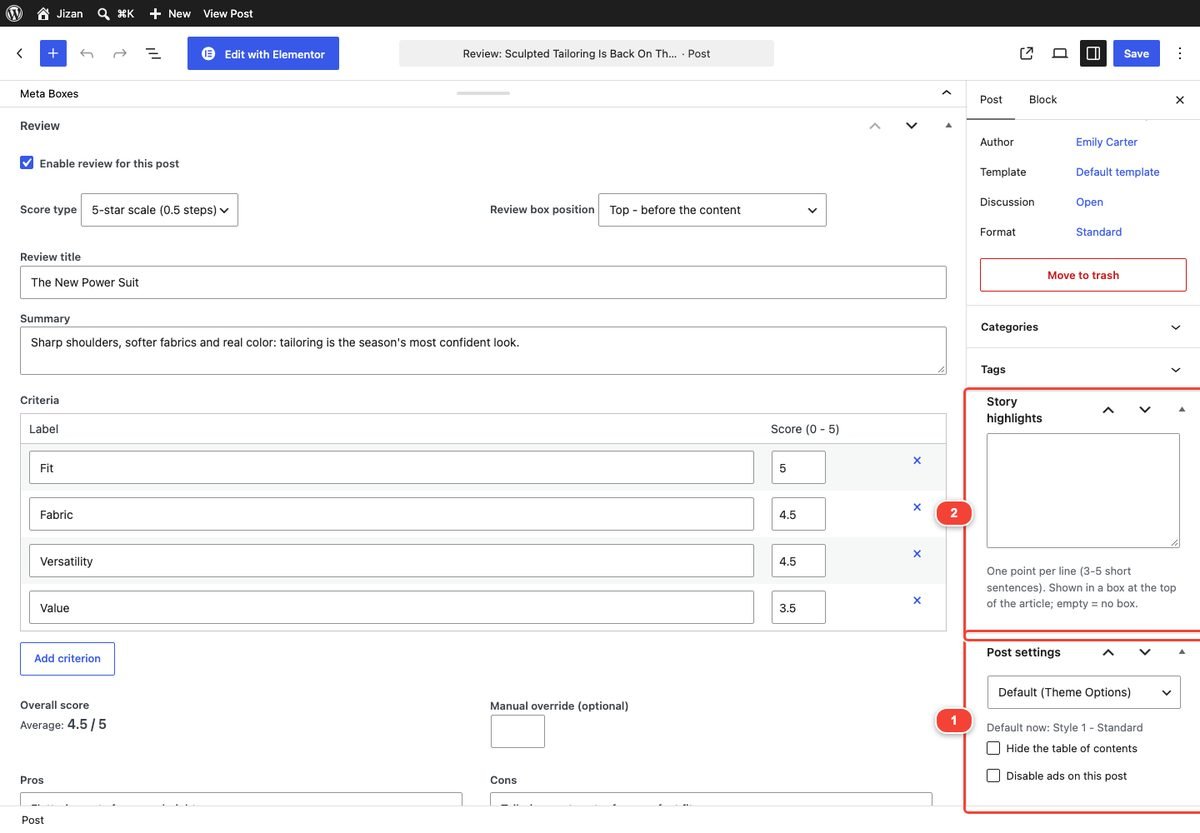
- Per post: tick Disable ads on this post in the Post settings box of a post (sponsored articles, sensitive news).
- Note: "between posts" ads inside blocks loaded later with Load more are cached for everyone, so "hide for logged-in" applies only to the first page there.
Example: Google AdSense setup
- In your AdSense account create a Display ad unit (responsive) and copy its code. It looks like:
<script async src="https://pagead2.googlesyndication.com/pagead/js/adsbygoogle.js?client=ca-pub-1234567890123456" crossorigin="anonymous"></script> <ins class="adsbygoogle" style="display:block" data-ad-client="ca-pub-1234567890123456" data-ad-slot="1234567890" data-ad-format="auto" data-full-width-responsive="true"></ins> <script>(adsbygoogle = window.adsbygoogle || []).push({});</script> - In Jizan → Ads click + Add ad unit, name it "AdSense - In article", choose HTML / AdSense code and paste the code into Ad code.
- Tick the devices, keep the "Advertisement" label (AdSense recommends labeling ads) and click Save ads.
- Choose "AdSense - In article" in Single post - inside the content, set after paragraph to 3, and click Save ads.
- Repeat with other AdSense units for the header, after the content or the sidebar (Jizan Ad widget).
- Add your
ads.txtfile (from AdSense) to the root of your site, and clear your cache.
<script async src=…> line in the page head. Use Google's Site Kit plugin for that. Do not paste <script> tags into Theme Options → Custom Code (that field expects JavaScript without tags).9.Homepages with Elementor
Every demo homepage is a normal WordPress page built with Elementor (free) and set as the front page. Open it with Edit with Elementor. The Jizan widgets are in the Jizan category of the Elementor panel (search "Jizan" or scroll to the category).
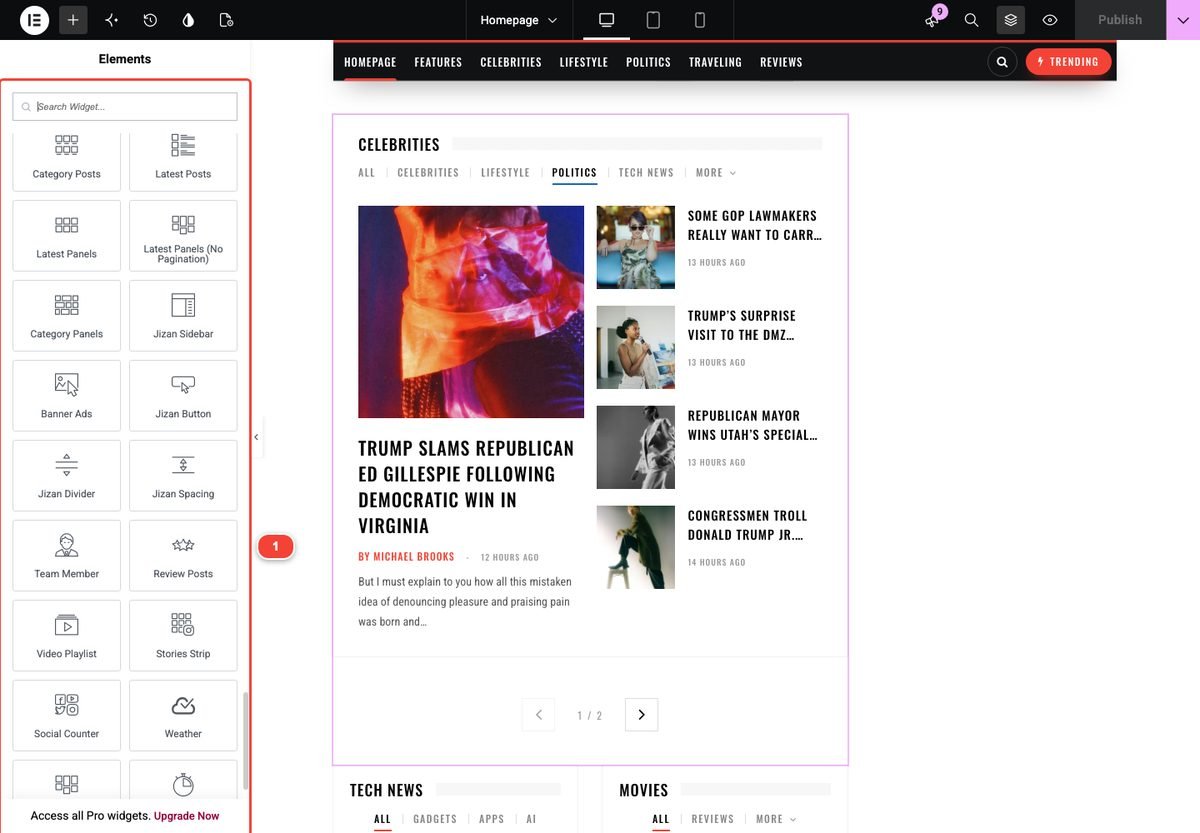
The 21 Jizan widgets
| Widget | What it does |
|---|---|
| Category Posts | Posts of one category in 17 layouts (Featured 1-3, Grid, Grid Overlay, List, Card Grid, each in 100% and 66% widths). AJAX pagination and tabs. |
| Latest Posts | Latest posts from any categories in grid / list / card layouts. AJAX pagination and tabs. |
| Latest Panels | Big featured "panel" mosaics (KT Featured Panel 1-6) for the top of a homepage. |
| Latest Panels (No Pagination) | The same panels without pagination controls. |
| Category Panels | Panels from one category, including Panel 7 (slider). |
| Review Posts | Posts with a review, with score badges: Card style (Image + text / Text over image), Columns, Order By Score / Date / Random. |
| Showcase | Premium layouts: Spotlight, Cover, Split, Mosaic, Newspaper, Cinema, Ranked, Tall, Minimal; Excerpts, Pictures, Dark Band, "View all" link. |
| Stories Strip | Instagram-style circles of recent posts or categories with a full-screen story viewer; Alignment, Seconds per slide. |
| Video Playlist | YouTube / Vimeo links or video-format posts with a click-to-play player and playlist. |
| Weather | Current weather and forecast (Open-Meteo, no API key): City label, Latitude, Longitude, Units, Forecast days, Style. |
| Social Counter | Follower tiles for up to 10 networks (Style, Columns, Network, Followers, Label, Profile URL). |
| Market Ticker | Scrolling or board-style market strip with static figures you enter (labelled "Demo data - not live prices" by default). |
| Newsletter Band | Full-width sign-up band (dark / accent / light) using the Jizan newsletter list, a form action URL or a form shortcode. |
| Section Intro | A big statement or a newspaper "Edition" bar with today's date. |
| Ad Slot | Shows a unit from Jizan → Ads. |
| Banner Ads | A simple image banner with URL and target. |
| Jizan Sidebar | Prints a widget area (Blog Sidebar, Extra Sidebar 1-5…) inside a column, with sticky sidebar support. |
| Jizan Button / Jizan Divider / Jizan Spacing | Small layout helpers in the Jizan style. |
| Team Member | Name, designation and photo card. |
Common block options
The post widgets (Category Posts, Latest Posts, Latest Panels, Category Panels, Review Posts, Showcase) share these controls:
| Section | Control | What it does |
|---|---|---|
| Content | Title | Section title. Empty = no title. |
| Content | Post Style / Latest Posts Layout / Panel Layout / Layout | The design of the block. |
| Query | Category / Categories / Exclude Categories | Which posts. "Categories" empty = all categories. |
| Query | Number of Posts, Offset | How many posts per page; skip the first N posts. |
| Query | Order By, Order | Date, Last modified, Title, Comment count, Views, Random; Descending / Ascending. |
| Query | Exclude Posts | Post IDs to leave out, comma separated (for example posts already shown in a block above). Applies to every page and tab. |
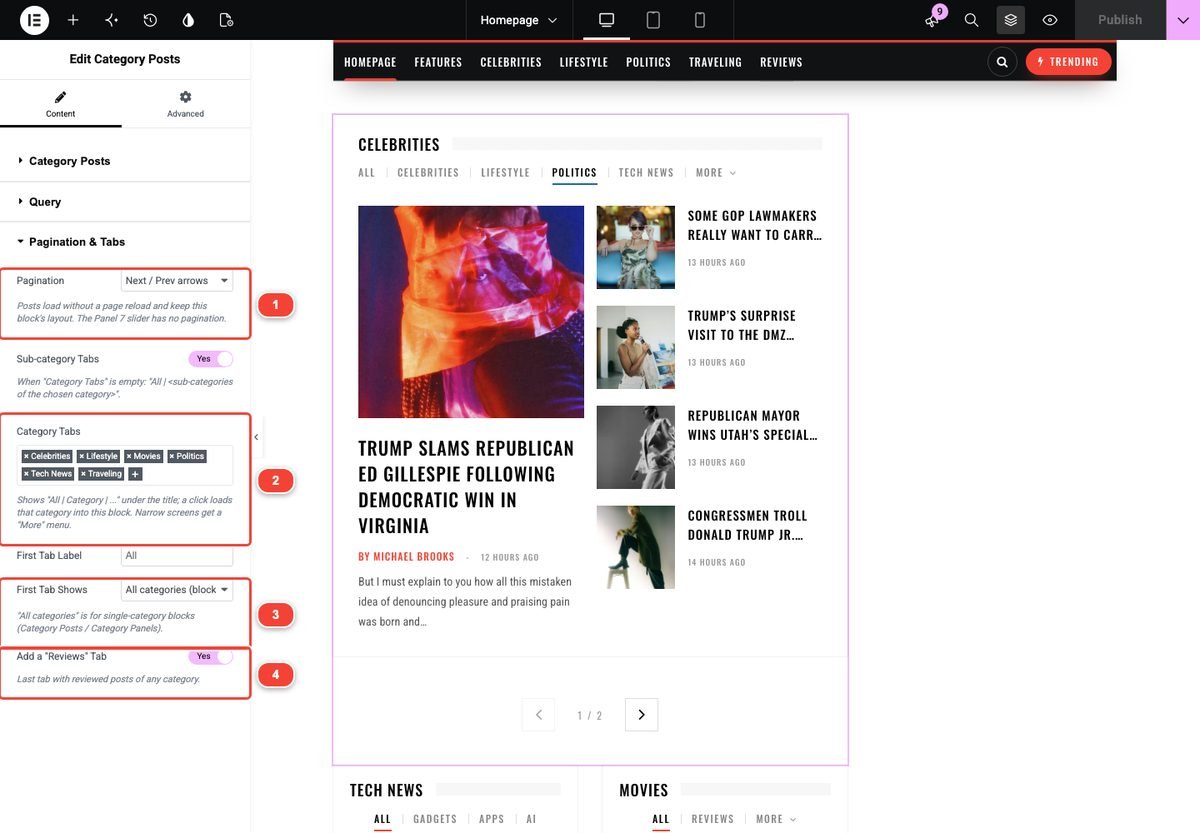
| Pagination & Tabs | Pagination | Auto (Next / Prev for featured & panel layouts, else Load more), None, Load more button, Next / Prev arrows, Numbered (AJAX), Infinite scroll. Posts load without a page reload and keep the block layout. The Panel 7 slider has no pagination. |
| Pagination & Tabs | Button Text | Text of the Load more button (default "Load more"). |
| Pagination & Tabs | Auto-load Pages | Infinite scroll: pages loaded while scrolling before a Load more button appears (default 3; 0 = no limit). |
| Pagination & Tabs | Category Tabs | Shows "All | Category | …" under the title; a click loads that category into the block. When tabs do not fit (narrow screens), the rest go into a "More" drop-down. |
| Pagination & Tabs | Sub-category Tabs | Single-category blocks: when Category Tabs is empty, shows "All | <sub-categories>" automatically. |
| Pagination & Tabs | First Tab Label | Text of the first tab (default "All"). |
| Pagination & Tabs | First Tab Shows | This block's own posts or All categories (block opens on its category tab). |
| Pagination & Tabs | Add a "Reviews" Tab | A last tab with reviewed posts of any category. |
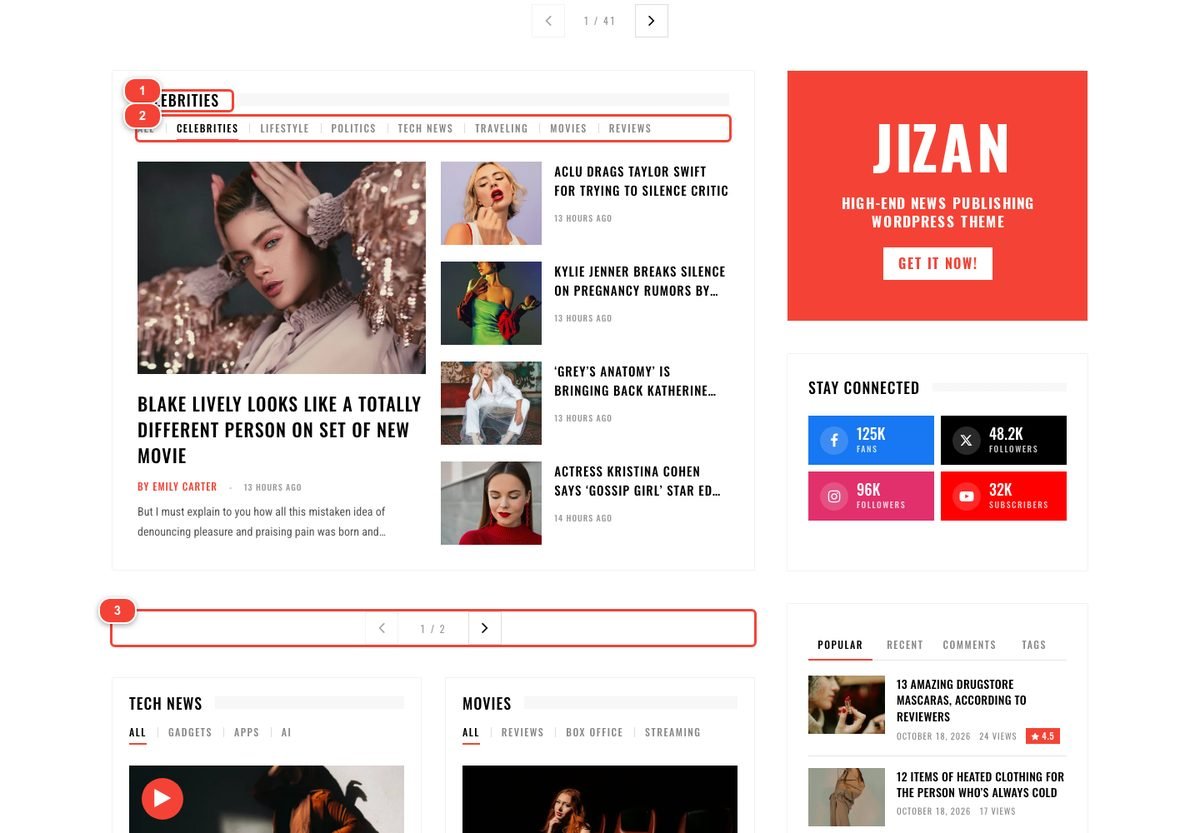

Animation: new posts fade and slide up one after another and a thin spinner shows while loading; it is automatic and respects the visitor's "reduce motion" setting. For extra entrance effects use Elementor's Advanced → Motion Effects on any widget.
Build a homepage from scratch
- Go to Pages → Add New Page and type a title (for example "Home").
- In the right sidebar (Page tab) set Template to Homepage (full width, no default sidebar).
- Optional: in the Page layout box choose a Page skin, Header style, Site layout and Navigation bar style.
- Click Publish, then Edit with Elementor.
- Click the + in the canvas and add a Container with a full-width structure. Drag Latest Panels into it for the top mosaic; choose a Panel Layout and set Pagination to Next / Prev arrows.
- Add a second container with two columns (about 66% / 33%). In the wide column add Category Posts blocks (one per category: choose Category, Post Style, Category Tabs and Pagination). In the narrow column add Jizan Sidebar and choose a widget area (for example Blog Sidebar or Extra Sidebar 1, filled in Appearance → Widgets).
- Add more sections: Stories Strip, Video Playlist, Showcase, Ad Slot, Newsletter Band… Use the "100%" layouts in full-width sections and the "66%" layouts in the wide column.
- Click Publish.
- Go to Settings → Reading, choose A static page, select your page as Homepage and click Save Changes.
Page layout box (per-page skin, header, nav style)
Every page has the Page layout box (right sidebar of the page editor). It overrides the global settings for that page only:
| Field | What it does |
|---|---|
| Page skin (colours) | One of the 17 skins for this page (Theme default = Theme Options skin). |
| Header style | Header 1 - classic … Header 8. |
| Site layout | Full width, Boxed, Framed, Minimal (no header banner / ticker, airy). |
| Navigation bar style | Any navigation bar preset for this page. |
| Accent colour | A hex colour (for example #00796B) used by the spinner, tabs and Load more on this page. Empty = Theme Options. |
Skin and header are also in Elementor: gear icon → Jizan Style Kit → Page skin / Page header style.
10.Posts
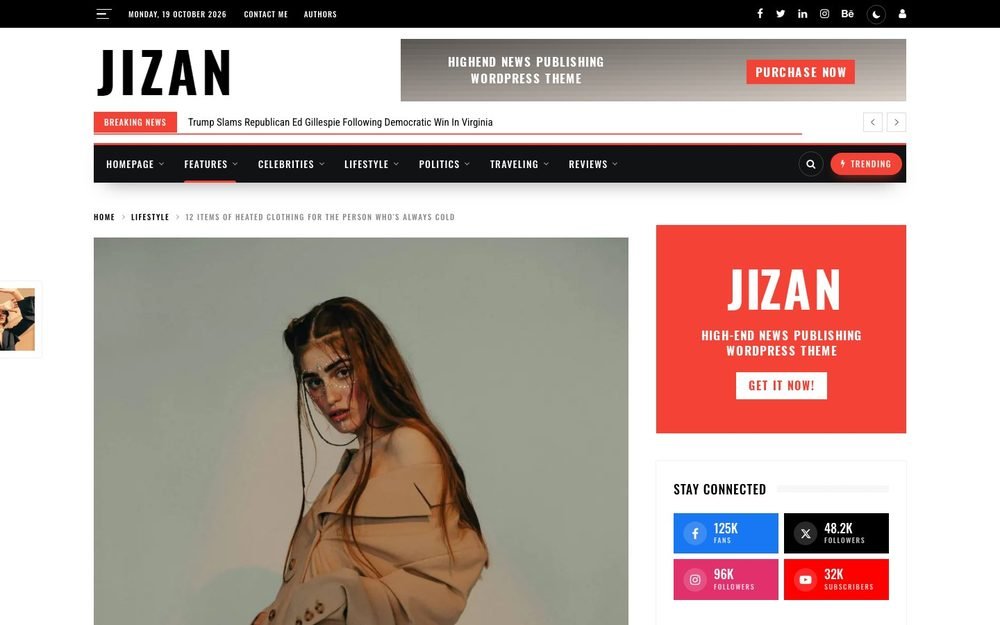
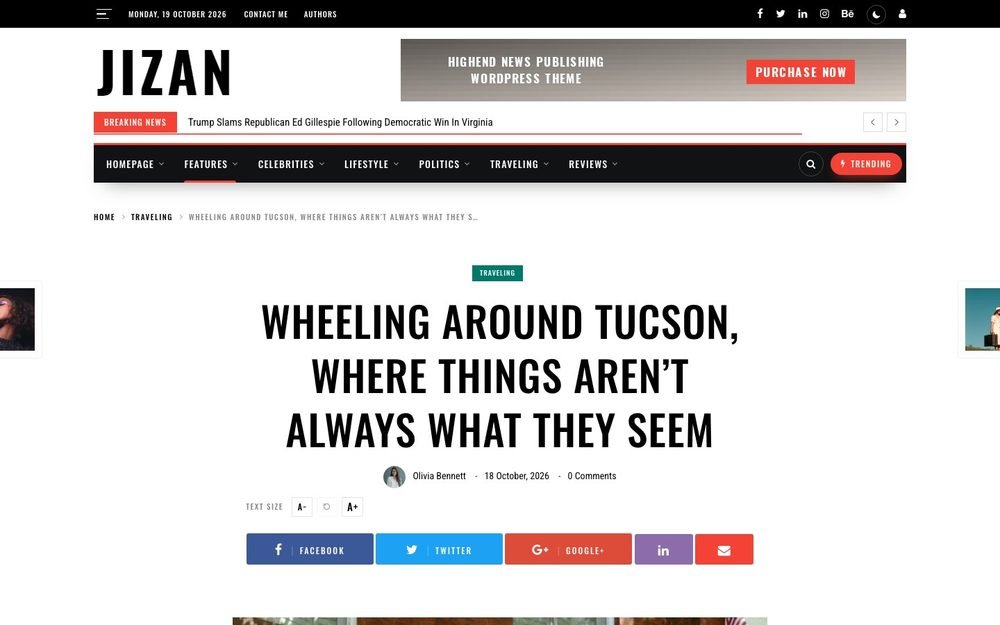
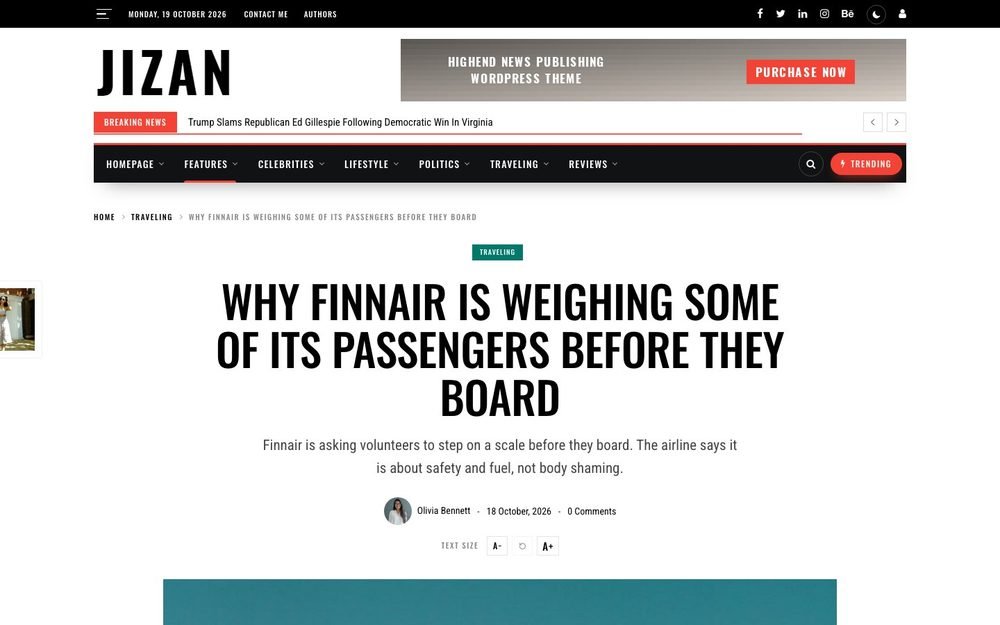
The 7 single post styles




Global vs per-post style
- Global: Jizan → Theme Options → Blog & Single → Single Post Design → choose a style → Save Changes.
- One post: edit the post; in the right sidebar open the Post settings box and choose a style ("Default (Theme Options)" follows the global value; the line "Default now:" shows which one). Click Update.
Sidebar options
- Single posts and archives use the Blog Sidebar widget area; Styles 3 and 6 have no sidebar; Style 7 follows Post Style 7 Sidebar.
- Pages use the template Page with Sidebar to show the Page Sidebar area; the Default template is full width.
- Sticky Sidebar (Blog & Single) keeps the sidebar visible while scrolling on desktop.
Post formats (video, audio, gallery)
- In the post editor sidebar set Format to Video, Audio or Gallery.
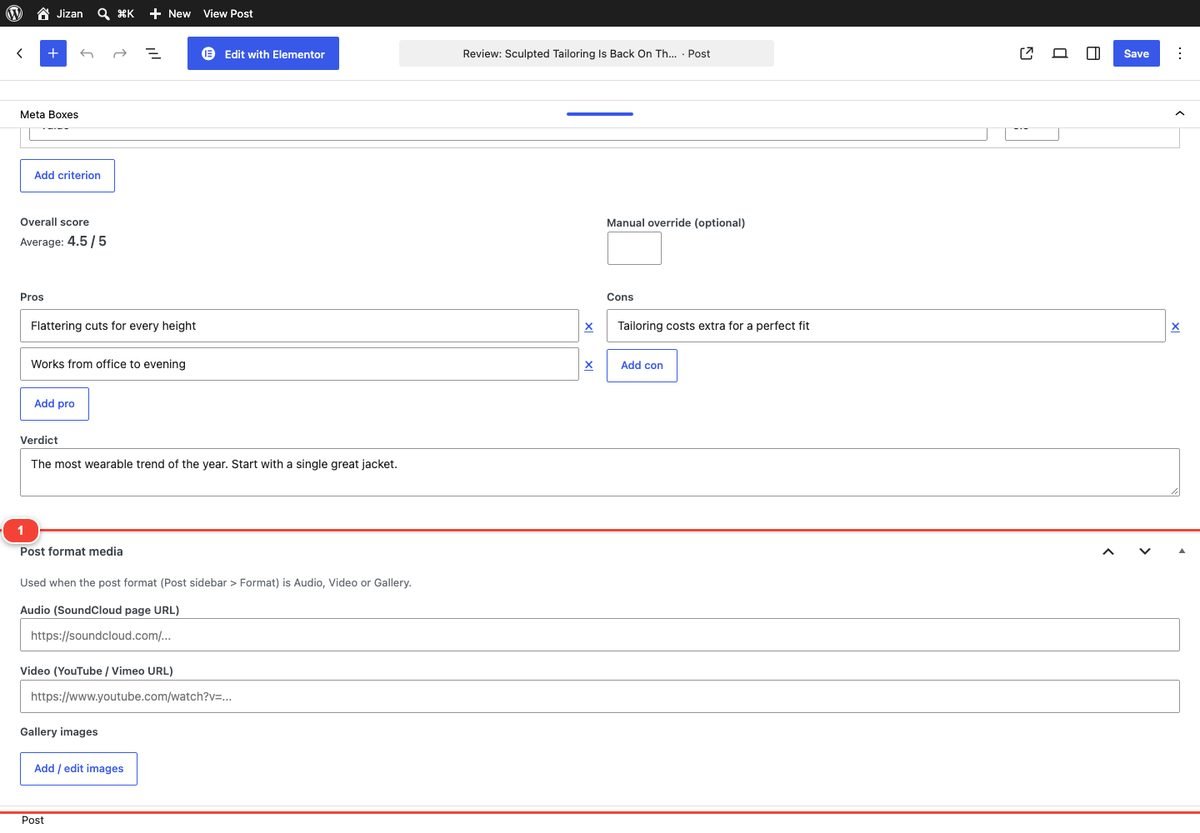
- Scroll to the Post format media box (under the content; in the block editor open the "Meta Boxes" panel at the bottom).
- Fill Video (YouTube / Vimeo URL), Audio (SoundCloud page URL) or click Add / edit images for Gallery images.
- Update the post. The media replaces the featured image at the top of the article, and video posts can be used by the Video Playlist widget.
Review system
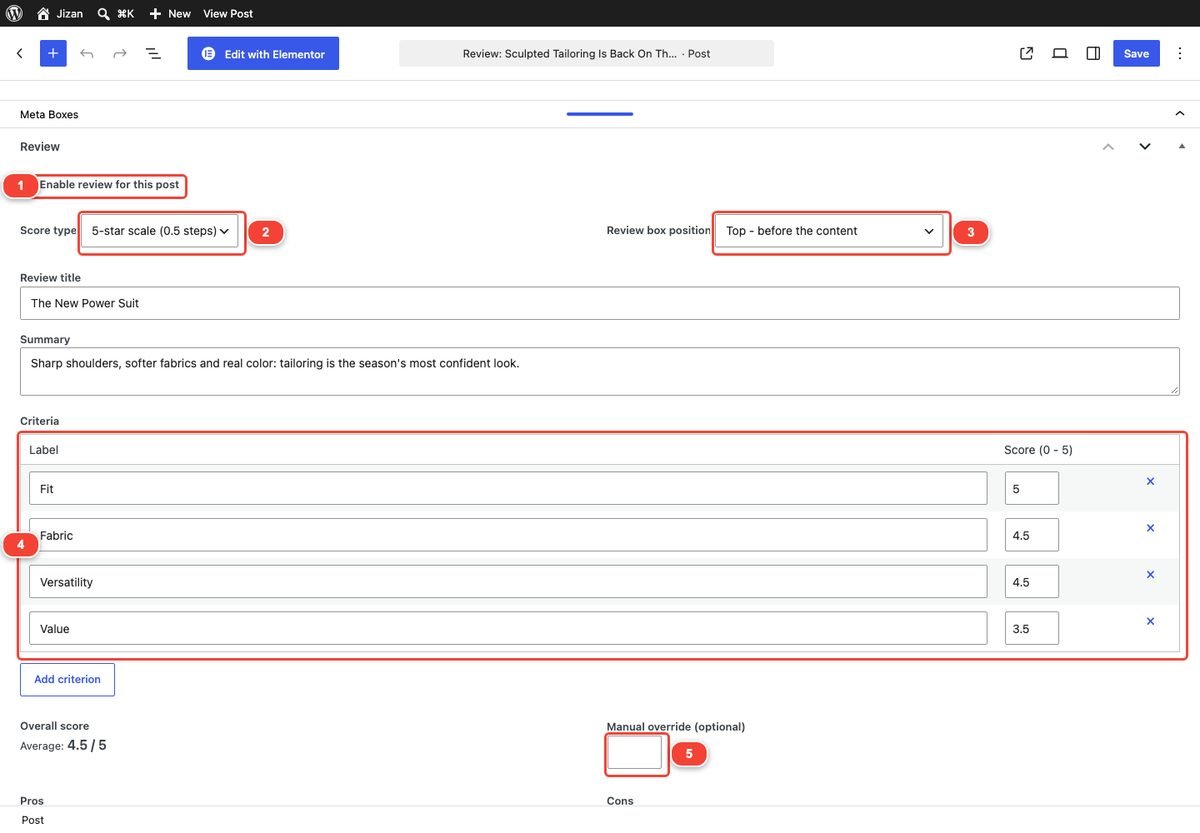
- Edit a post and find the Review box (under the content / "Meta Boxes" panel).
- Tick Enable review for this post.
- Score type: 5-star scale (0.5 steps) or Out of 10 (0.1 steps).
- Review box position: Default (Theme Options), Top - before the content, Center - in the middle of the content, Bottom - after the content, or Where I put [jizan_review] (place the shortcode yourself).
- Fill Review title and Summary.
- Under Criteria add rows with a Label and a Score (Add criterion). Each criterion is shown as a percentage bar.
- The Overall score is the average automatically; use Manual override (optional) to set your own.
- Add Pros and Cons (Add pro / Add con) and a Verdict. Update the post.
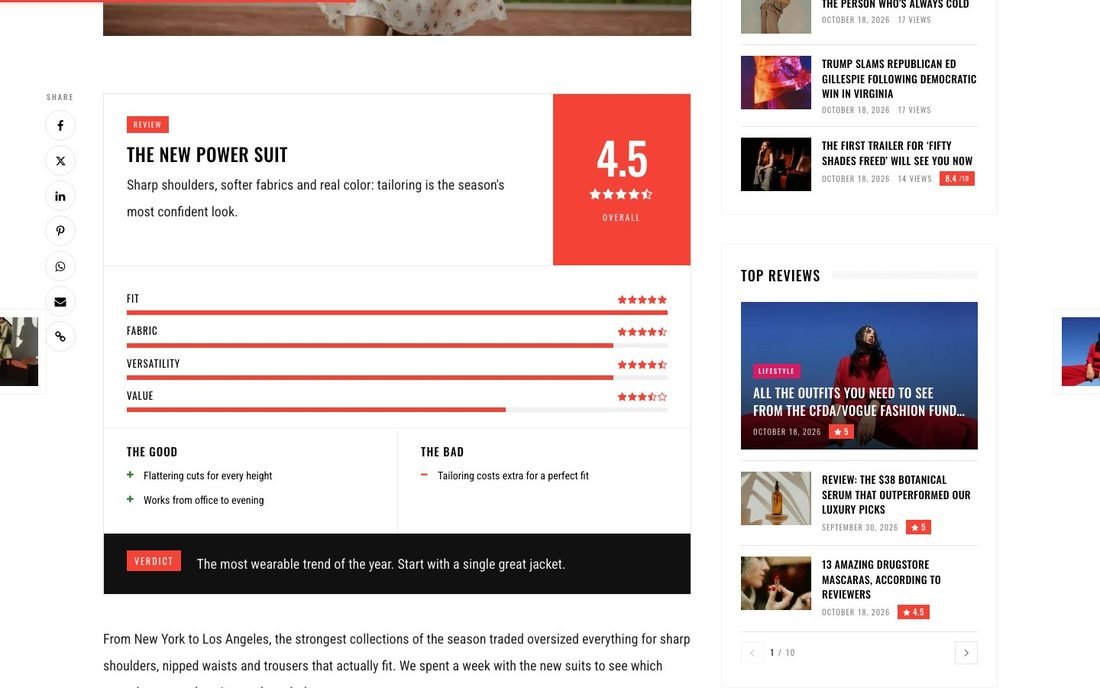
Percent scores: criteria are always displayed as percentage bars. Old Jizan 1.x "Inline Review" percent scores are converted automatically to the "Out of 10" scale.
Reading tools
All in Theme Options → Reading (on by default) and working with every post style:
| Feature | Option | Details |
|---|---|---|
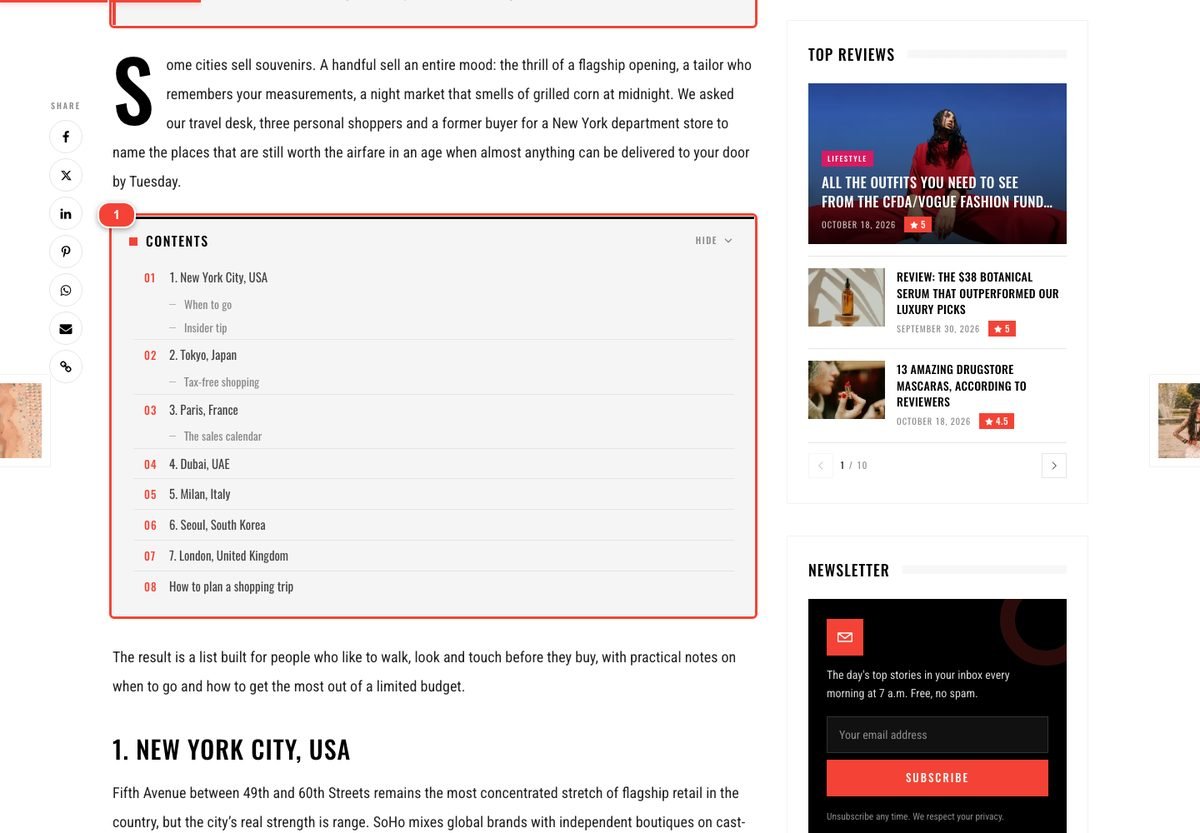
| Table of contents | Table of Contents, Table of Contents Position, Minimum Headings, Start Collapsed, Sticky Contents in Sidebar | Built from the H2/H3 headings when a post has at least "Minimum Headings" (default 3). Position: Top of the article / After the first paragraph. On desktop a compact copy follows in the sidebar and highlights the current heading. Per post: Hide the table of contents (Post settings box). |
| Reading progress | Reading Progress Bar | A thin brand-colour bar at the top that fills while reading. |
| Font size | Font Size Buttons | A- / reset / A+ next to the meta; the visitor's size is remembered. |
| Share bar | Sticky Share Bar | Vertical bar beside the article on wide screens, bottom bar on phones: Facebook, X, LinkedIn, Pinterest, WhatsApp, Email, Copy link. |
| Select & share | Select & Share | Selecting text shows a small X / Facebook / Copy tooltip. |
| Story highlights | Story highlights box (post editor) | One point per line (3-5 short sentences). Shown in a box at the top of the article; empty = no box. |
| "Check also" | "Check Also" Box | A related post slides in at the bottom right at about 70% of the article (once per post). |
| Related posts | Related Posts, Number of Related Post (66%) | Posts from the same category under the article (Blog & Single tab). |
| Next article | Auto-load Next Article (AJAX & Loading) | Loads the previous article below when the reader reaches the end. Plus Floating Previous/Next Posts cards on wide screens. |

11.Archives, categories, search and SEO
Archive pages
Category, tag, author, date and search pages use Theme Options → Blog & Single → Category Layout Options (5 layouts), the Excerpt Length, and AJAX & Loading → Archive Pagination (Load more by default). The category description (Posts → Categories) is shown under the archive title.
Category colours
- Go to Posts → Categories and edit a category (or add a new one).
- Click Select Color under Category colour and pick a colour. Empty = brand colour.
- Click Update. The colour is used for the category labels on cards, block tab underlines, the mega menu accent and the archive header. Sub-categories without their own colour use the brand colour. Turn the feature off in Layout & Breadcrumbs → Category Colours.
Live search
See Search window and live search. The search results page uses the archive layout and Load more. The off-canvas panel has its own live search field.
Breadcrumbs
Layout & Breadcrumbs → Breadcrumbs shows "Home / Parent category / Category / Title" on posts, pages, archives, search and author pages (inside the hero on Style 4).
Schema (structured data)
With SEO & Schema → Structured Data on, Jizan Core prints one JSON-LD graph per page: NewsMediaOrganization (name, logo, social profiles), WebSite with SearchAction, NewsArticle on posts (headline, image, dates, author, publisher, section, word count), BreadcrumbList, and Review for reviewed posts. Fill Organization Name (empty = site title), Organization Logo (at least 112 px; empty = header logo) and Social Profiles (one URL per line). When Yoast SEO, Rank Math, All in One SEO or SEOPress is active, Jizan skips its own schema automatically to avoid duplicates.
Author pages and the authors list
- Users → Profile: Profile photo (Choose photo; used instead of Gravatar everywhere), Biographical Info, and under Social Profiles: User Title, Twitter, Facebook, Google+, Pinterest, LinkedIn, Instagram, YouTube, Behance.
- Author archives (
/author/name/) show the author card and their posts. - Authors list: create a page with the template Authors List Page.
- Blog & Single → Author Box adds the author card under every post.
404 page
The 404 page is designed by the theme: a large "404!", the message "Oops! Page not found!" and a Back to Home button, with your normal header (menu and search) and footer. There is nothing to set up; change the texts with a translation (see Translation).
12.Style Kit, colors, dark mode, RTL and translation
Style Kit (17 skins)
Theme Options → Style Kit → Colour Skin: one click recolours links, labels, buttons, the mega menu, spinner, ticker, review badges and dark mode. Colours you changed yourself in the Colors tab are kept, and category colours stay their own.
Jizan Red Crypto Orange Sunset Orange Food Coral Cinema Red City Raspberry Lifestyle Rose Tech Purple Gaming Neon Business Blue Newsroom Blue Travel Teal Health Mint Sports Green Classic Black / Gold Newspaper Ink Minimal Mono + Custom
- Open Theme Options → Style Kit and click a skin card (each card is a mini preview).
- For your own brand choose Custom: Custom Skin - Primary (links, labels, buttons, accents) and Custom Skin - Secondary (dark colour of the top bar) appear.
- Click Save Changes. A page can use a different skin (Page layout box).
Colors and typography
Fine-tune colours in the Header, Navigation, Colors, Featured Posts and Footer tabs, and fonts in the Typography tab (see Theme Options). Section Heading Style (General tab) changes all block and widget titles at once.
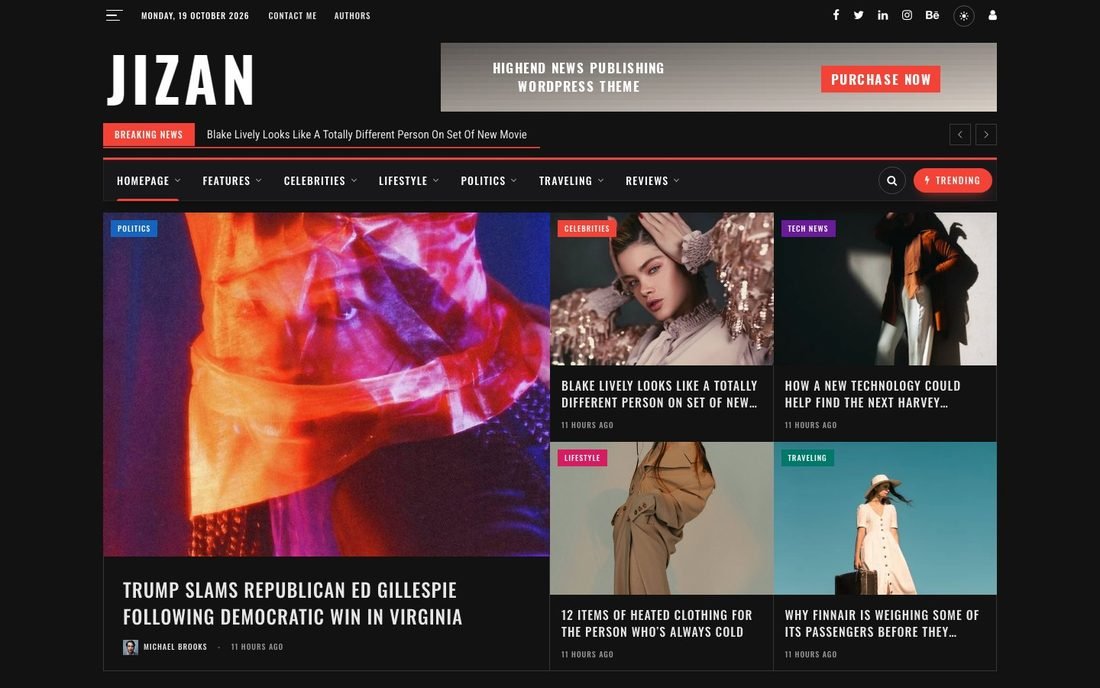
Dark mode
- Theme Options → Reading → Dark Mode = On adds the sun/moon switch.
- Default Colour Scheme: Light, Dark or System (follows the visitor's device). The visitor's choice is remembered in the browser and applied before the page paints (no white flash).
- Upload a light logo in Dark Mode Logo.
RTL
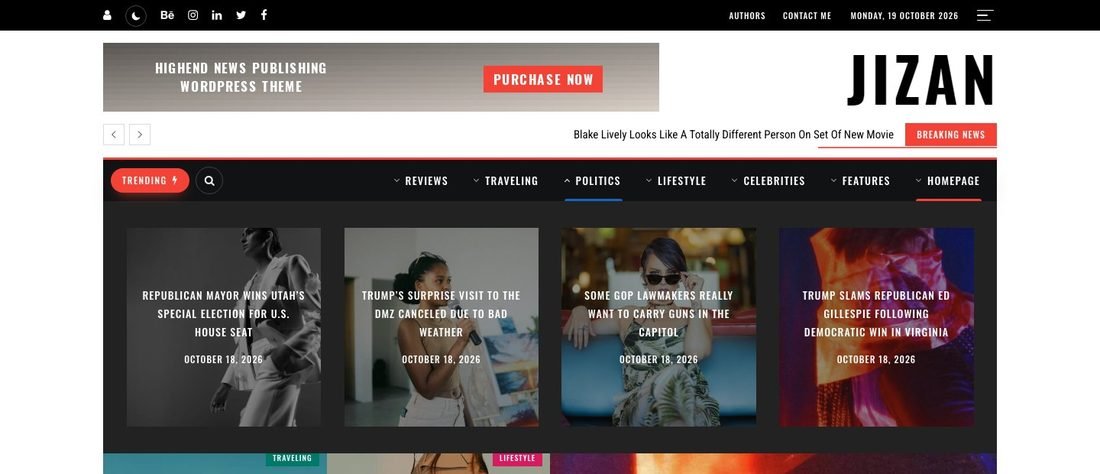
Jizan includes a complete rtl.css. It loads automatically when the site language is right-to-left (Arabic, Hebrew, Persian, Urdu…) in Settings → General → Site Language. Menus, mega menus, the off-canvas panel (slides from the right), ticker and sliders are mirrored.
Translation
- Translation templates:
jizan/languages/jizan.pot(text domainjizan) andjizan-core/languages/jizan-core.pot(text domainjizan-core). - Loco Translate (easiest): install it, go to Loco Translate → Themes → Jizan → New language, choose the language and location "System" (
wp-content/languages/themes/, safe from updates), translate and save. Repeat for Plugins → Jizan Core. - Poedit: open the .pot, translate, and save
jizan-xx_XX.po/.moinwp-content/languages/themes/(plugin:jizan-core-xx_XX.po/.moinwp-content/languages/plugins/). - WPML / Polylang (multilingual sites): translate posts, pages and categories as usual; create a menu per language and assign it to the same location per language; translate widget texts per language. Theme Options texts (footer about text, copyright, ticker title, off-canvas card) can be translated with WPML String Translation → Admin Texts (option
jizan_option) or Polylang's string translation with a small snippet, or replaced by widgets.
13.Widgets and sticky sidebar
Widget areas: Blog Sidebar, Page Sidebar, Footer A-D, Extra Sidebar 1-5 (for the Elementor Jizan Sidebar widget), BBPress Sidebar, Top Banner (Before Header), Header Banner 370x Any size Left / Right, Header Banner 728x90.
- Go to Appearance → Widgets.
- Click a widget area to open it, then click the + (Toggle block inserter) button at the top left.
- Search "Jizan" and click a widget (for example Jizan Posts). It is added to the open area.
- Fill its settings in the block and click Update (top right).
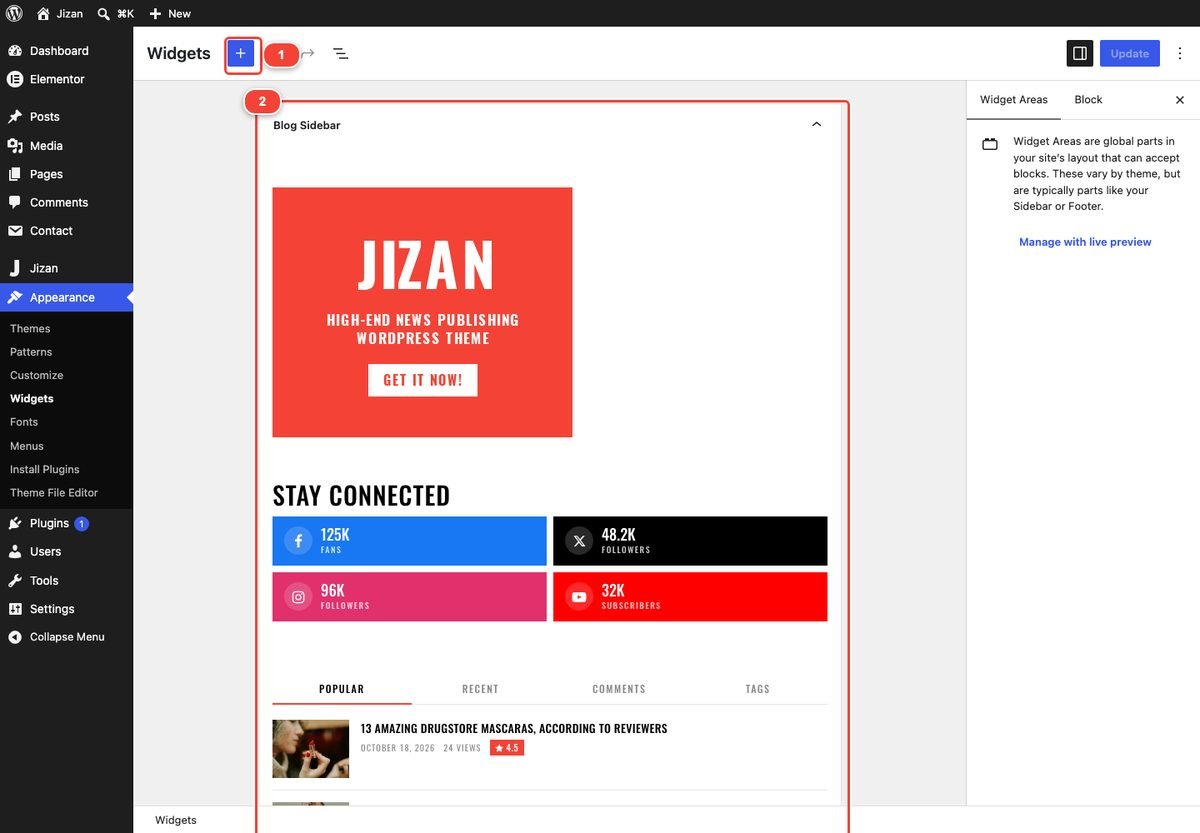
The 12 Jizan sidebar widgets
| Widget | What it does |
|---|---|
| Jizan Posts | Posts in four styles (Big first post + list, Thumbnails list, Numbered list, Overlay cards); Latest / Most viewed / Most commented / Random / Top rated reviews; category; date, views and review score; AJAX Next / Prev arrows or a More button. |
| Jizan Tabs | Popular, Recent, Comments and Tags in AJAX tabs. |
| Jizan Review Posts | Top rated (or newest) reviews with their score. |
| Jizan Trending | Most viewed posts with big numbers 1-5. |
| Jizan Author | About card: photo, role, bio and social links of a user. |
| Jizan Newsletter | Email sign-up: your service's form URL (Mailchimp: email field name EMAIL), a form shortcode, or the built-in list (Jizan → Subscribers). |
| Jizan Categories | Categories with post counts and colour dots, or image tiles. |
| Jizan Video | One featured video or a small playlist (one per line: URL|Title|Duration). |
| Jizan Image Grid | Instagram-style photo grid (one per line: image URL|link|alt text). |
| Jizan Weather | Current weather + forecast (Open-Meteo, no API key, cached 30 minutes). |
| Jizan Social Counter | Follower numbers with network icons. |
| Jizan Ad | Any unit from the ads manager. |
The theme also keeps its classic widgets (KT About Me or Website, KT Image Banner, KT Code Banner, KT Latest Posts, KT Most Read Posts, KT Popular Posts, KT Social Follow, KT Social Buttons, KT 300x250 / 125x125 / Header Advertisement), and the WordPress core widgets are restyled to match.
Sticky sidebar
Theme Options → Blog & Single → Sticky Sidebar: the sidebar stays in view while the visitor scrolls the longer content column (posts, archives, pages and the Elementor Jizan Sidebar widget). It is off on phones, where the sidebar moves below the content. It also respects the sticky navigation bar height.
14.Performance, FAQ and help
Performance tips
- Built in: bundled and per-feature CSS/JS, fonts served locally, lazy images with width/height, WebP copies of new uploads (Jizan Core), image quality 78, no jQuery Migrate and no emoji script on the front end, Contact Form 7 files only on pages with a form, deferred scripts, AJAX responses cached for 5 minutes.
- Use a page cache: LiteSpeed Cache (on LiteSpeed hosts), WP Super Cache, W3 Total Cache or your host's cache. After changing Theme Options or menus, purge the cache.
- Minify / combine: if a "combine JavaScript" or "delay JavaScript" option breaks menus, tabs or Load more, exclude files whose names start with
jizanfrom that option. - Do not block the REST API for visitors: AJAX blocks, mega menus, live search and widgets use
/wp-json/jizan/v1/. - Images: upload photos around 1600-2000 px wide, JPG quality 80. Jizan creates the sizes it needs (for example 1050 px and 480 px cards). After installing Jizan on an existing site, run the "Regenerate Thumbnails" plugin once so old images get the Jizan sizes (and WebP copies).
- Keep homepages reasonable: 10-14 sections are plenty; use Load more instead of very long blocks.
- The demo Main homepage loads about 526 KB with about 41 requests on first view (measured on the live demo).
FAQ and troubleshooting
The menu shows no mega menu.
Check Navigation → Mega Menu = On, that the menu is assigned to Main Menu, and that the item is at the top level. A category gives a posts panel; for columns tick "Mega columns". Clear your cache.
Load more, tabs or mega menu posts do not load (spinner keeps turning).
A security or cache plugin blocks /wp-json/jizan/v1/, or a JavaScript optimizer broke the scripts. Allow the REST API, exclude Jizan scripts from combine/delay, and purge caches.
The homepage is empty after the import.
See Common problems: Settings → Reading, Elementor → Tools → Regenerate CSS & Data, clear caches.
My colour changes do not show.
A page may have its own skin (Page layout box), and the navigation bar uses its own colour fields. Clear your cache and Elementor CSS.
How do I go back to the 2.0 look?
See the table in Updating from 2.0 to 2.1.
The header ad does not show.
Headers 1, 3 and 4 have the 728×90 area; Header 2 uses its own widget areas; the Minimal layout hides the header banner. Check the unit's Show on devices and "hide for logged-in users" (log out to test).
Icons show as squares.
The server or CDN blocks the font files in jizan/fonts/. Allow WOFF/WOFF2 files (correct MIME types, CORS for CDNs).
Social share counts / weather do not appear.
Weather needs your server to reach open-meteo.com; when it cannot, the widget hides itself. Social Counter numbers are typed by you (no API).
Is Elementor Pro required?
No. Everything works with the free Elementor.
Changelog
2.1.0 - October 2026
- New: 17 more demo homepages - 23 in total, each with its own skin and header; About Us and Advertise With Us pages.
- New: Style Kit - 17 colour skins + Custom and the header style in one tab; per-page skin, header, layout, accent and navigation bar.
- New: premium navigation bar - 6 presets, animated indicator, smart sticky, full styling options.
- New: premium off-canvas panel (also the phone menu) and premium footer with newsletter.
- New: AJAX post blocks (Load more, Next / Prev, Numbered, Infinite scroll, category tabs with "More"), AJAX mega menu with sub-categories, mega columns with preview and badges, live search, AJAX archives, auto-load next article.
- New: single post designs 4, 5, 6 and 7.
- New: dark mode, reading progress, table of contents, font size buttons, "Check also", sticky share bar, "Select & share", story highlights.
- New: ads manager (header, before / inside / after content, between posts, sidebar, phone sticky bar, Elementor Ad Slot; device targeting).
- New: 9 Elementor widgets (Showcase, Stories Strip, Video Playlist, Weather, Social Counter, Market Ticker, Newsletter Band, Section Intro, Ad Slot) - 21 in total; 12 sidebar widgets.
- New: structured data, breadcrumbs, category colours, Full width / Boxed / Framed / Minimal layouts, complete RTL.
- Improved: speed, ticker, sidebar widgets, floating previous / next posts; demo importer fixes.
2.0.0 - October 2026
- Rebuilt for Elementor: Jizan widgets, review system, one-click demo import, Welcome page, Jizan admin menu, new Theme Options panel (no Redux), AJAX login, profile photos, single post design selector, sticky sidebars. Removed the need for Redux, WPBakery, ACF and other 1.x plugins. PHP 8 fixes.
1.1 - 2017
- Previous WPBakery / Redux version.
Credits and licenses
- Jizan theme and Jizan Core: GPL v2 or later.
- Font Awesome 4.7 by Dave Gandy - fonts SIL OFL 1.1, CSS MIT.
- Bootstrap 3.3.7 parts (MIT), Slick 1.8.1 (MIT), Flickity 2.3.0 (GPLv3), Magnific Popup 1.2.0 (MIT), Pace 1.2.4 (MIT), SlickNav 1.0.10 (MIT), Pushy 1.0.0 (MIT), Basic jQuery Slider 1.3 (GPL), modalEffects (MIT), TGM Plugin Activation 2.6.1 (GPL).
- Oswald and Roboto Condensed fonts: SIL Open Font License (served from the theme).
- Weather data: Open-Meteo (open-meteo.com, no API key).
- Demo photos: Unsplash (Unsplash License). They are not included in the download; the importer loads them from the live demo for preview purposes only.
Support
Jizan is made by FEKBD. Get help at fekbd.com/support (more themes and plugins at fekbd.com).
- Included: questions about features, help with installation and demo import, bug fixes and updates, for verified ThemeForest buyers during the support period of the purchase.
- Not included: custom modifications, third-party plugin conflicts beyond reasonable checks, server setup.
- Please send your purchase code, your site URL and a short description or screenshot of the problem. Read the FAQ first; most questions are answered there.
No section matches your search. Try another word, for example "menu", "ads" or "footer".